Customers sign in with
a code on WhatsApp
In every plan, from Starter up
No password to remember. The customer types their WhatsApp number, gets a code in WhatsApp and is signed in: on your login page, before checkout or from a Buy now button.
- A country picker for Kuwait, Saudi Arabia, the UAE, Qatar, Bahrain and Oman
- “Open WhatsApp” and “Paste code” bring the code back in one tap
- Arabic digits are understood, and the customer is signed in as soon as the code is complete
- An optional box for order updates and offers, never ticked in advance
What your customer gets on WhatsApp
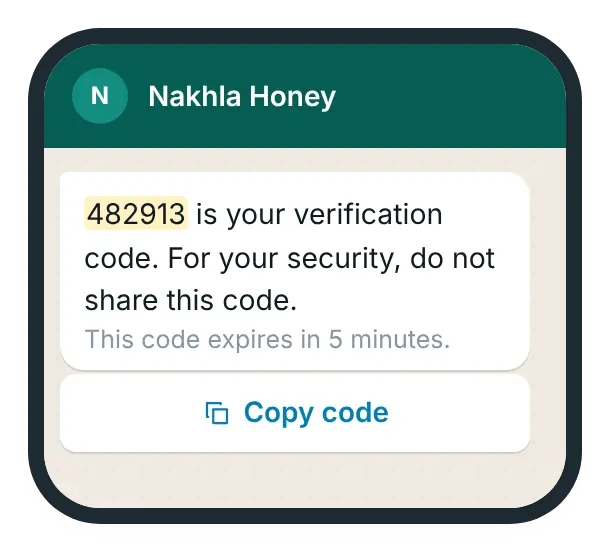
What your customer sees on your site

A login that feels like WhatsApp
- A country picker for Kuwait, Saudi Arabia, the UAE, Qatar, Bahrain and Oman
- The code arrives in WhatsApp; “Open WhatsApp” and “Paste code” bring it back in one tap
- Arabic digits are understood, and the customer is signed in as soon as the code is complete
- A countdown before “Resend code”, and a clear message when a number is not on WhatsApp
- Your logo, colours and texts in Arabic and English (Settings → Branding)
- An optional box for order updates and offers on WhatsApp, never ticked in advance
What your customer does
Types their number
They pick the country and type their WhatsApp number.
Gets the code on WhatsApp
“Open WhatsApp” and “Paste code” bring the code back in one tap. If the number is not on WhatsApp, the form says so.
Is signed in
As soon as the code is complete, Arabic digits included, the customer is signed in.
Where your customers see it
Use one, two or all three.
A login page
Put the shortcode [amwca_whatsapp_login] (or [wapi_whatsapp_login]) on any page. The plugin also creates a “WhatsApp Login” page when you activate it.
Before checkout
With “WhatsApp-Only Checkout” on, shoppers confirm their number before they reach checkout, then come straight back to it with their cart. The My account login form becomes the WhatsApp form. Admins are never affected.
A Buy now button
Turn on “Buy Now Flow” (Settings → General) and add a Buy now button to any page with a shortcode. A shopper who is not signed in goes through the WhatsApp login, then straight to checkout with the product.
How to set it up
Create a login-code template
In WAPI Connect → Templates, start from the ready login-code template in Starter templates, or from the “Login code” starting point, and send it to Meta. You can also create it in Meta’s WhatsApp Manager. Meta writes the text of these templates; you choose the button, such as Copy code.
Choose it for the login
Next to the template in Templates → Starter templates, choose “Use for” → “OTP Login”; it is used as soon as Meta approves it. Or write the template name and its language code next to “Verification code (OTP)” in Settings → Templates.
Turn on the login
In Settings → OTP Login, turn on “Enable OTP Login” and set “Authentication Template Button” to the same button your template has. You can also change the code length (4 to 8 digits), how long a code works (1 to 30 minutes) and the limits.
Show the form
Use the “WhatsApp Login” page the plugin made, or add the shortcode to any page. For checkout, turn on “WhatsApp-Only Checkout” in Settings → General; it works only with “Checkout Safe Mode” off.
Try it with your own number
Sign out, open the page on your phone and sign in with your WhatsApp number.
Careful with codes, careful with costs
Codes are not kept as text
The plugin keeps only a hash of each code, and a code stops working after the minutes you choose (5 by default).
Limited tries
After 5 wrong tries (you can change it), the customer has to ask for a new code.
Hourly limits
Each phone number and each network can ask for a set number of codes an hour (10 and 20 by default). That stops abuse and extra Meta costs.
The right account
The plugin finds the customer by their WhatsApp number or billing phone, and can create a customer account when there is none (“Auto-create Account”).
No waiting for nothing
If WhatsApp refuses to send the code, the customer is told so, instead of waiting for a code that never comes.
Back to your store only
After signing in, customers are only sent to pages of your own store.
What Meta decides about login codes
As of 17 October 2026. Login codes go out as authentication templates in Meta’s WhatsApp Cloud API.
- Meta writes the text of authentication templates; you choose the button, such as copy code
- Each code is an authentication message, billed by Meta to your own WhatsApp account at its rate for the customer’s country
- The hourly limits per number and per network stop anyone from running up your Meta bill
- Meta’s rates are on its pricing page
What you need
- An approved Authentication template, made in WAPI Connect → Templates or in Meta’s WhatsApp Manager
- Customers with a WhatsApp number in one of the six Gulf countries
- Your number connected to Meta’s WhatsApp Cloud API
- Any plan, from Starter up
What it costs
To us
Included in every plan, from $55/year (≈ 17 KD).
To Meta
Each code is an authentication message. Meta bills your own WhatsApp account at its rate for the customer’s country (as of 17 October 2026).
Kept in check
The hourly limits per number and per network stop anyone from running up your Meta bill.
Questions about the login code
Does it replace passwords on my store?
Only where you use it. The WhatsApp form can sit next to WooCommerce’s normal login. With “WhatsApp-Only Checkout” on, the My account login form becomes the WhatsApp form. Admins are never affected, and the WordPress admin login stays as it is.
Which countries can sign in?
The form’s country picker has Kuwait, Saudi Arabia, the UAE, Qatar, Bahrain and Oman.
Will it stop fake orders?
With “WhatsApp-Only Checkout” on, the shopper has to receive a code on that WhatsApp number before checkout. We have no measured figures yet, so we do not promise fewer fake orders.
Does signing in mean the customer agreed to offers?
No. Only the optional box on the form, “Send me order updates and offers on WhatsApp”, records that. It is never ticked in advance.
What if the customer types a number that is not on WhatsApp?
When WhatsApp reports that the number is not on WhatsApp, the form says so and asks the customer to check it. It never says “code sent” when WhatsApp refused the message.
What does each code cost?
Nothing from us. Meta charges each code as an authentication message at its rate for the customer’s country. See Meta’s pricing page.
Let customers sign in with WhatsApp
The login code is in every plan, from Starter up.