Every WhatsApp call in the customer’s chat,
so no caller is forgotten
Pro plan and up
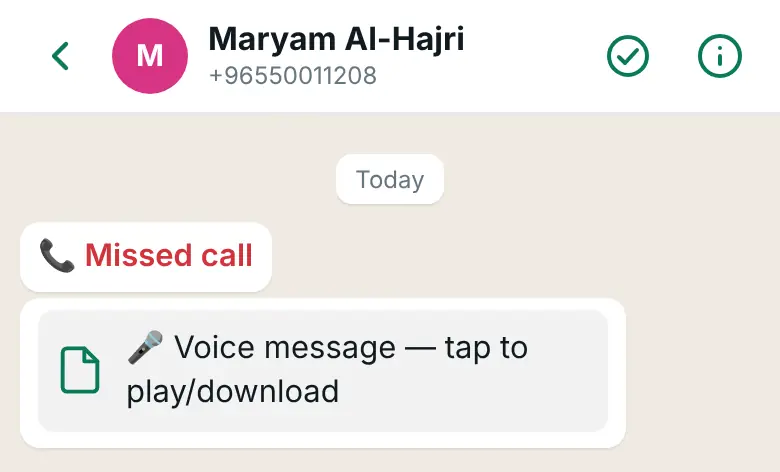
When customers call your WhatsApp number, each call is logged on the Calls screen and in the customer’s chat, and your phone tells you about every missed call. A voicemail lands in the same chat.
Where do you pick up? Nowhere yet: the plugin cannot pick up WhatsApp calls, and a number on Meta’s Cloud API is no longer in the WhatsApp Business app. The inbox app on your phone shows the call while it rings; you then call the customer back or write to them.
Find it in WAPI Connect → Calls. “Refresh from Meta” reads your number’s call settings again.
- Every call on the Calls screen and in the customer’s chat
- A phone notification for every missed call
- A voicemail in the same chat, ready to play
What you see on your phone
What you see in WordPress

The current version of WAPI Connect Pro (2.10.0) cannot pick up WhatsApp calls, not in the inbox app and not anywhere else. It logs the calls and alerts you, so you can write back or call the customer back. A number on Meta’s Cloud API is no longer in the WhatsApp Business app, so calls cannot be picked up there either. Picking up calls in the inbox app is planned for a later version, with no date yet.
How it works
Once, in WordPress: turn calling on for your number in WAPI Connect → Calls (see below). After that, every call goes like this:
A customer calls your WhatsApp number
They tap the call button in your chat or profile on WhatsApp.
The call is logged, and a missed call reaches your phone
It shows on the Calls screen and in their chat in the inbox app. Every missed call sends a notification to your phone.
You get back to the customer
Call back with your phone’s normal dialer, or write in the chat. A voicemail arrives in the chat as a voice message.
What the calls log does not do
- Picking up calls. Not in the inbox app, not on a computer and not in the WhatsApp Business app. Planned for a later version of the inbox app, with no date yet.
- Starting WhatsApp calls. The plugin does not call customers on WhatsApp. The “Call” button in Customer info uses your phone’s normal dialer.
- Numbers connected to a SIP server. When your number sends its calls to a SIP server, the plugin does not receive them, and the screen says so.
See every call, and the ones you missed
- “Recent calls”: the time, the customer’s name with a link to their chat, and how the call ended
- Voice call with its length, missed call, declined call, or call failed with the reason in plain words
- A “Voicemail” mark when the caller left one
- “All calls” and “Missed” tabs
- The last 7 days at a glance: calls from customers, missed calls and talk time
The call shows up where you answer customers
A call bubble in the chat
Each call appears in the customer’s chat in the inbox app, with the same status as the log, so you see it between their messages.
A notification on your phone
“Incoming WhatsApp call” while it rings, then “Missed call from …” with the time, on every phone that turned on notifications in the inbox app. Tapping it opens the chat.
The voicemail in the chat
When a caller leaves a voicemail, it arrives in their chat as a voice message you can play, and the call is marked “Voicemail” in the log.
Get back to the customer
Write to them in the chat, or use the “Call” button in Customer info to call their number with your phone’s normal dialer.
Turn calling on or off from WordPress
- “Customers can call this number”: shows a call button in your WhatsApp chat and profile
- “Show the call button”: turn it off to hide the button, so customers cannot call you out of the blue
- “Ask callers if you may call them back”: after a call, WhatsApp asks the customer for permission to be called later (the plugin itself does not place WhatsApp calls)
- “Save on Meta” sends your choice to your number’s settings at Meta
- Call hours you set in WhatsApp Manager are shown here; outside them WhatsApp tells callers you are closed
- If Meta restricts calling on your number, the screen shows it and until when
The Calls screen reminds you that Meta watches whether calls are picked up, and may restrict calling on a number when many calls go unanswered. Since the plugin cannot pick up calls, keep calling on only if that suits you, or hide the call button.
What you turn on in WordPress

Meta’s requirements, checked for you
The screen checks each one (as of 17 October 2026):
- Meta sends call events to this site: your Meta app is subscribed to the “calls” webhook field. When the App Secret in your settings belongs to that app, the button “Subscribe the app to ‘calls’ for me” does it in one click; otherwise the screen shows the steps.
- A messaging limit of at least 2,000 customers a day, read from account health
- A payment method on your WhatsApp account in Meta
- Calling turned on for the number
Questions about calls
Can I pick up a customer’s WhatsApp call in the app?
No, not in the current version (2.10.0). You see the call in the log and in the chat, and get a notification, so you can write back or call back. Picking up calls in the inbox app is planned for later, with no date yet.
Do I have to turn calling on?
No. If calling is off, customers cannot call your WhatsApp number, and everything else in the plugin works as usual.
Who gets the missed-call notification?
Every phone or computer where someone turned on notifications in the inbox app.
Why does the Calls screen ask for 2,000 customers a day?
That is the messaging limit Meta asks for before calling can be turned on for a number. Account health shows your current limit, which grows with business verification and good quality.
Which plan has the calls log?
The Pro plan and higher, together with the inbox app, where the call bubbles and notifications appear.
Never lose track of a customer who called
The calls log comes with the Pro plan, together with the inbox app and automations.