Documentation
Account health and the calls log
At the end, you know what each number on the Account health screen means and what to do when one turns red, Meta’s bad news reaches you by e-mail and on your phone, and every WhatsApp call from a customer shows up in your calls log.
What you need
- Account health: in every plan, from Starter up. The calls log: Pro plan and up (see the plans).
- Your Phone Number ID, WhatsApp Business Account ID and a permanent access token in Settings → WhatsApp API. The token needs
whatsapp_business_managementto read your account. - For alerts and calls: the account webhook fields and
callson in your Meta app (webhook fields) - Recommended: the App Secret in Settings → WhatsApp API, so the Calls screen can check your app for you
- For alerts on your phone: the inbox app with notifications turned on (Pro)
Open Account health
In WordPress open WAPI Connect → Health & tools → Account health. Everything on it is read live from your Meta account and kept for 10 minutes; “Refresh” reads Meta again, and “Updated …” shows when it last did. Reading it sends no messages, so Meta does not bill it.
When something serious is wrong, a red line at the top says so, and the plugin’s other screens show a banner “WhatsApp account: …” with “See details”.
What each number means
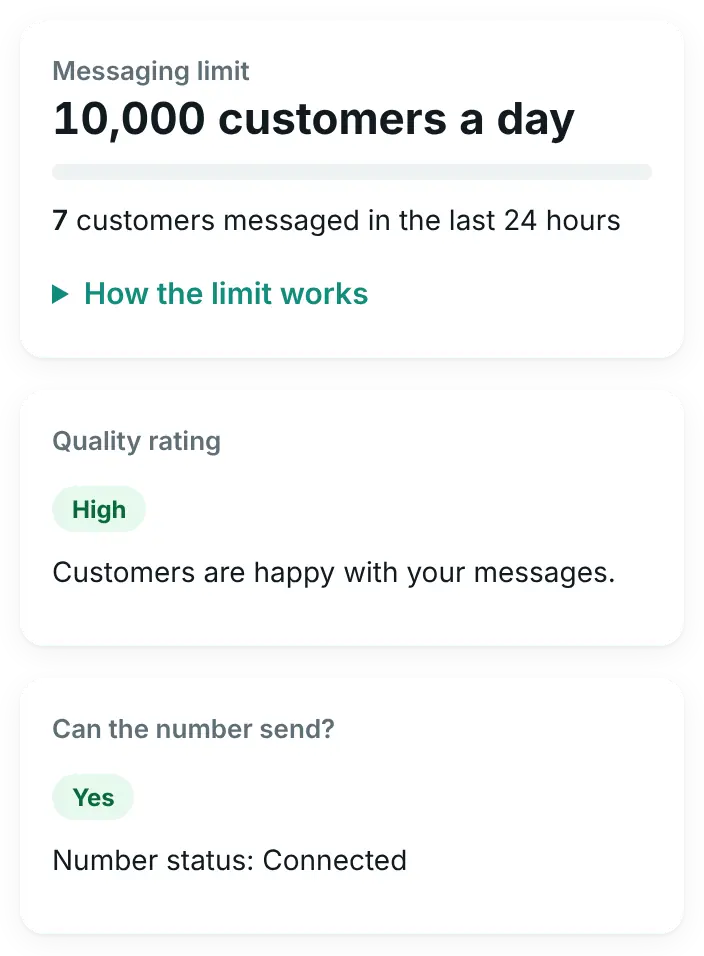
Messaging limit
How many different customers WhatsApp lets you start a chat with in any 24 hours, for example “1,000 customers a day”. Below it, a bar and the line “… customers messaged in the last 24 hours”. The bar turns orange from 70% and red from 90%.
- The limit counts template messages: the ones you send outside the 24-hour reply window, such as order updates, cart reminders and campaigns. Replies to customers who wrote to you are not limited.
- It is shared by all the WhatsApp numbers of your Meta business portfolio. From 250 it can rise to 2,000 after business verification, or after 2,000 delivered template messages to different customers in 30 days with good quality; from 2,000 it rises by itself when you use at least half of it with good quality.
- New accounts start low: 250 customers a day at the time of writing (17 October 2026). Business verification and good quality raise it. Only Meta can change it.
- The count of the last 24 hours comes from this plugin’s own log, so messages sent from other tools are not included.
The campaign wizard uses this limit to warn you before you choose more customers than you can still message today (see campaign limits).
Quality rating
How customers react to your messages, as Meta rates it:
- High: “Customers are happy with your messages.”
- Medium: some customers block or report your messages. Send fewer marketing messages for a few days.
- Low: many customers block or report your messages. Stop marketing messages until it improves; otherwise Meta can pause your templates or restrict the number.
- Not rated yet: WhatsApp rates quality after you send messages for a while.
Can the number send?
“Yes”, “Limited” or “Blocked”, as Meta reports it. When it is not “Yes”, Meta’s own reason and suggested fix are shown under it. “Number status” shows the number’s state at Meta, for example “Connected”, “Flagged” or “Restricted”.
Number and account
- Number and Display name, with the result of Meta’s display name review
- Sending speed: how many messages a second Meta lets your number send, “Standard (80 messages a second)” or “High (up to 1,000 messages a second)”
- WhatsApp account: the name of your WhatsApp Business Account
- Account review and Business verification: where Meta’s checks of your account and business stand
What WhatsApp cost you (last 30 days)
Meta’s own figures for your account, in your account’s currency: a total, then a table by type with the number of messages and the cost. Types are “Marketing”, “Utility” (order updates), “Login code” and “Replies to customers”; the rows “No charge (24-hour reply window)” and “No charge (chats from ads)” count messages Meta did not charge. The line “Replies to customers this month” shows how many replies Meta charged and how many it did not.
Template messages (marketing, order updates, login codes) are charged when delivered. Since 1 October 2026 Meta also charges replies to customers: the first 1,000 each month on each WhatsApp number cost nothing, then Meta charges its service rate for the customer’s country. Replies stay uncharged for up to 7 days after a customer comes from a click-to-WhatsApp ad. The figures are approximate and can be a few hours late. We add nothing to Meta’s prices.
Templates
How many of your templates are in each state (approved, paused, rejected…), then a table of the ones that need attention: paused, disabled, rejected, in appeal or flagged, or rated medium or low. When all is well: “No template has a problem.” What to do is in the templates guide.
Alerts from Meta
Meta sends account events to your store, and the plugin lists the last 30 with the date and an explanation in plain words. Bad news is sent to you straight away:
- an e-mail to your site’s admin address, with what happened
- a notification on every phone that turned on notifications in the inbox app
- the banner on the plugin’s screens
For example: your messaging limit went down, your number was flagged for low quality, Meta restricted or disabled your WhatsApp account or reported a policy violation, a template was paused, rejected or rated low, Meta moved a template to another category, or your account review or display name was rejected.
A paused template’s alert also says where the template is used. Without the App Secret in Settings → WhatsApp API, the plugin cannot tell a real alert from a faked one: it then shows only what it recognises from Meta, in its own words, adds “(not verified)” to the title, and asks you to check it in WhatsApp Manager.
“No alerts received yet” is good news, or the fields are not on. “How to receive alerts from Meta” on the screen lists them. In your Meta app open WhatsApp → Configuration → Webhook fields and subscribe to: account_update, phone_number_quality_update, message_template_status_update, message_template_quality_update, template_category_update, business_capability_update, account_alerts, account_review_update and phone_number_name_update.
The calls log
When calling is on for your number, customers can call you from their WhatsApp chat. The plugin logs every call, shows it in the customer’s chat in the inbox app, and tells your phone about incoming and missed calls.
Plugin 2.10.0, the current version, cannot pick up WhatsApp calls, not in the inbox app and not anywhere else. A number on Meta’s Cloud API is no longer in the WhatsApp Business app, so calls cannot be picked up there either. The log and the alerts let you write back or call the customer back. Meta watches whether calls are picked up and may restrict calling on a number when many go unanswered, so turn calling on only if that suits you, or hide the call button.
Set it up
-
Open the Calls screen
Open WAPI Connect → Calls. The card “What calling needs” checks Meta’s requirements one by one, with ✓ for each one that is met.
-
Subscribe your app to “calls”
The first check is “Meta sends call events to this site (“calls” webhook field)”. When the App Secret in your settings belongs to your Meta app and the app already sends its webhooks to this store, press “Subscribe the app to “calls” for me”; the app’s other webhook fields stay as they are. Otherwise follow the steps under “How to subscribe to “calls” in the Meta app dashboard”:
- Open developers.facebook.com/apps and choose the app connected to your WhatsApp number.
- Go to WhatsApp → Configuration (in newer dashboards: Use cases → Customize → Configuration).
- Under “Webhook fields” click Manage, find
callsand switch Subscribe on. - Optional: also subscribe to
account_settings_update, so changes you make in WhatsApp Manager show on the Calls screen at once. - Come back and press “Refresh from Meta”.
-
Check the messaging limit
“Messaging limit of at least 2,000 customers a day”: Meta turns calling on only from that limit (as of 17 October 2026). The check reads it from Account health; if it says it is not known yet, open Account health once. A lower limit rises by itself as you message more customers with good quality.
-
Add a payment method
“A payment method on your WhatsApp account”: Meta asks for one before calling works, even though calls from customers are not charged. Without it, calls fail with “no valid payment method”. Add it in WhatsApp Manager → Payment settings.
-
Turn calling on
In the card “Calling on your number”, switch on “Customers can call this number”. “Show the call button” decides whether the call button appears in your WhatsApp chat and profile. Press “Save on Meta”. The screen then says “Calling is on”; customers may need up to a few days to see the call button.

WAPI Connect → Calls, the card “Calling on your number”: the three switches, each with what it does, and “Save on Meta”, which sends them to your number's settings at Meta. The two green labels at the top show what Meta has now. The yellow box is the screen's reminder about unanswered calls. Demo store data.
If you set call hours in WhatsApp Manager (Phone numbers → Call settings), the screen shows them; outside them WhatsApp tells callers you are closed. If Meta restricts calling on your number, the card shows it and until when. A number that sends its calls to a SIP server does not reach the plugin, and the screen says so.
What you see
- “Recent calls”: the time, the customer’s name with a link to their chat, and how the call ended: “Voice call” with its length, “Missed call”, “Declined call” or “Call failed” with the reason in plain words.
- “Voicemail” next to a call when the caller left one; the voice message is in their chat and the chat list shows “🎤 Voicemail”.
- “All calls” and “Missed” tabs, and the last 7 days at a glance: “Calls from customers”, “Missed” and “Talk time”.
- On your phone: “Incoming WhatsApp call” while it rings, then “Missed call from …” with the time, on every phone with inbox notifications. Tapping it opens the chat.
To get back to the customer, write in the chat, or press “Call” in the chat’s Customer info to call their number with your phone’s normal dialer.
Check that it worked
- Account health shows your messaging limit, a quality rating and the costs table, with no red line at the top.
- After Meta’s next account event, it appears under “Alerts from Meta”.
- On the Calls screen every line of “What calling needs” has a ✓.
- Call your business number on WhatsApp from another phone: “Last call event received” changes, and the call is in “Recent calls” and in that chat.
Common problems
Account health shows dashes or “Could not read the phone number from Meta”
Check the Phone Number ID, the WhatsApp Business Account ID and the token in Settings → WhatsApp API. The token needs the whatsapp_business_management permission. Then press “Refresh”.
“Meta did not return the costs”
Meta answered the cost question with an error, shown after the colon. The rest of the screen still works. Check the token and the WhatsApp Business Account ID, then press “Refresh”.
The used count is lower than I expected
It counts only template messages this plugin sent in the last 24 hours. Messages from other tools on the same number are not in it, but Meta counts them.
No alerts ever arrive
Turn on the account webhook fields listed above in your Meta app. Alerts also need the webhook itself to work: check “Webhook receiving” in Connection Doctor.
The Calls screen says “Your Meta app is not subscribed to “calls” yet”
Subscribe the field with the button or the steps above, then press “Refresh from Meta”. The check turns green when Meta lists calls for your app.
“Add the App Secret in Settings → WhatsApp API so the plugin can check this for you. …”
Without the App Secret the plugin cannot read your app’s webhook fields. Add it in Settings → WhatsApp API, or check the fields yourself with the steps above.
Calls fail with “no valid payment method”
Add a payment method to your WhatsApp account in WhatsApp Manager → Payment settings.
The call notification does not reach my phone
Call alerts use the inbox app’s notifications. Open the inbox on your phone and send a test notification. See notifications on iPhone.