Campaigns to customers who said yes,
with a report you can act on
Business plan and up
Send an offer on WhatsApp to the customers who agreed, and see who got it. Each message is filled in for the customer, such as their first name, and the report shows who got it, who read it, who replied and why any message failed.
Find it in WAPI Connect → Campaigns.
- Only contacts who agreed get campaigns
- “stop” or «إيقاف» unsubscribes by itself
- Pauses by itself when Meta stops your messages
- Meta bills your account; we add nothing
What your customer gets on WhatsApp

What you see after sending

How it works
Once, in WordPress: an approved marketing template (made in WAPI Connect → Templates) and your contacts, synced from your store or imported. Then each campaign goes like this:
You choose who gets it
For example recent buyers or a tag. Only contacts who agreed to offers are counted.
You pick a template and send
An approved template with a picture and a coupon button. Send now or schedule it.
You read the report
Delivered, read and replied, and why any message failed. Anyone who writes “stop” gets no more offers.
The campaign wizard, screen by screen
In WAPI Connect → Campaigns, “New campaign” opens four screens, one after another:
Message
Pick your approved template and see a live WhatsApp preview.
Audience
Recent buyers, customers who stopped buying, best customers, a tag, or everyone who can receive campaigns.
Send
Now or later, at the speed you choose.
Review
Check everything, then launch and follow the report.
Your template, filled in for each customer
- Pick one of your approved templates; the list comes from your WhatsApp account
- A template with a picture, video or document on top? Choose the file for everyone, from a public https link or your Media Library
- Variables filled from each customer: first name, full name, last order number, total or date, number of orders, total spent, custom fields, or your own text
- “If empty, use…”: a fallback such as “dear customer” when a value is missing
- Coupon-code and link buttons from your template: you write the code (up to 20 characters, 15 in a limited-time offer) or the end of the link
- A live WhatsApp preview with a real contact’s details
Templates are created in WAPI Connect → Templates or in WhatsApp Manager, and reviewed by Meta; the review usually takes a few minutes and at most 24 hours. The templates guide shows how.
Carousels, limited-time offers and a branch location
Campaigns can send these richer templates, built in the Templates screen.
Carousel
2 to 10 cards in one message. For each card you choose a store product or a picture from your Media Library.
Limited-time offer
The end time comes from a WooCommerce coupon or from a date at least 15 minutes after sending starts. Messages due after the end are skipped. The coupon code can have up to 15 characters.
Location
For a template with a location on top, you enter the place name, the address and its map pin (latitude and longitude) in the campaign wizard.
Carousels and limited-time offers are Marketing templates. Limited-time offers and coupon buttons do not show in WhatsApp on a computer or the web (Meta’s rules as listed in plugin 2.10.0, October 2026).
Choose who gets it
Every segment holds only contacts who agreed and did not unsubscribe. The count shows how many people will get it, and how many were left out and why.
Everyone who can receive campaigns
All contacts who agreed and did not unsubscribe.
Contacts with a tag
For example VIP, an imported list, or an event.
Recent buyers
Bought in the last few days; you choose the number of days.
Customers who stopped buying
Bought before, but not recently. Good for “we miss you” offers.
Best customers
At least the number of orders you set, or spent at least the amount you set.
Never bought
Signed up or agreed, but no order yet.
The count, before you send
On the Audience screen, the wizard counts the people who will get the campaign, and says who was left out and why.
- “Skip people who got a campaign in the last … hours”, on by default at 24 hours, so nobody gets two campaigns in a row
- More options: only some countries, leave out tags, and “Send to at most” to test an offer on a small group first
What you choose in WordPress
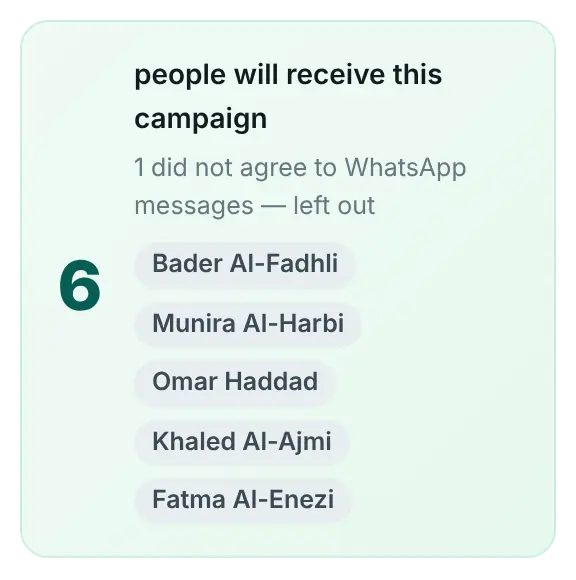
A warning before you pass today’s limit
Meta limits how many different customers your number may start a chat with in 24 hours. New accounts start low (250 customers a day at the time of writing, 17 October 2026), and the limit grows with business verification and good quality.
When your audience is bigger than what is left today, the wizard says “More people than WhatsApp allows today”, shows the numbers, and offers to send to the allowed number only. The rest can go tomorrow. It reads your limit from account health.
Check it, test it, then send
- “Send now” or “Schedule for later”, in your site’s time zone
- Sending speed: careful (20 a minute), normal (60) or fast (200, only for numbers with a high daily limit)
- “Send a test to yourself first”: the exact message on your own phone, charged like one message
- An estimated Meta cost before you send
- Known problems first, such as an unpaid Meta balance or a paused campaign, with a “Fix in Meta” button
Delivered, read, replied, and why some failed
- Recipients, sent, delivered, read, replied and failed, updating live while it sends
- A reply within 3 days of the campaign counts as replied
- Failures WhatsApp reports later, after the message was sent, are counted too
- “Why some messages failed”: each reason in plain words with what to do, such as “Held back by WhatsApp”, “Not reachable on WhatsApp” or “Payment problem in your Meta account”
- For each reason: “Show them”, “Fix in Meta” where it helps, and a download of that list
- “Download report” for the whole campaign as a file
What you see after sending

Built to protect your number
Retry only what can pass
“Retry” sends again only messages that failed for a reason that can pass. Messages WhatsApp held back, spam-limit failures and sends with an unknown outcome are never resent, so nobody gets the same message twice.
Try again in a few days
For customers WhatsApp held back, “Send to them again later” tags them and prepares a copy of the campaign for 3 days later, for you to check and launch.
Pauses by itself
When every next message would fail, for example an unpaid Meta balance, an expired token, a blocked account or a paused template, the campaign pauses. A template that Meta pauses or disables holds the campaign before any message goes out. Nobody is skipped: press “Resume” after you fix it.
You hear about it
A pause comes with a banner that says why, an e-mail to the site’s admin address, and a notification on phones with the inbox app.
Checked again before each send
Right before each message goes out, the customer is checked again. Anyone who unsubscribed, was blocked or was deleted meanwhile is skipped, and so is anyone who got another campaign while the skip option is on. The report says why.
Stop means stop
A customer who writes “stop”, «إيقاف» or a similar word, or taps Meta’s “Stop promotions” button, is unsubscribed and gets a short confirmation. So is anyone who turned off marketing messages in WhatsApp.
Your customers, ready for campaigns
- “Sync from store” reads every order and customer account, guests too, and adds each phone number with its number of orders, total spent and last order
- Contacts you already have are updated, never deleted, and people who unsubscribed stay unsubscribed
- Tags like “VIP” or “Ramadan 2026”, to target campaigns
- Filters by consent, tag and country, search by name, number or e-mail, and export
- Select many contacts at once to add or remove a tag, mark them as agreed, unsubscribe or delete them
Find it in WAPI Connect → Contacts. New customers join by themselves when they order or log in with a WhatsApp code.
What you see in WordPress
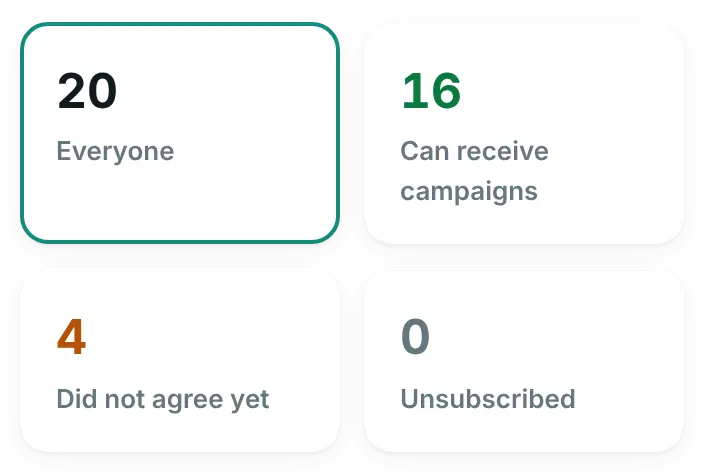
Bring a list from Excel, CSV or a copy and paste
- Excel (.xlsx), CSV or TSV from any program, up to 15 MB, or numbers pasted as text
- Comma, semicolon or tab, and the encodings Excel uses, Arabic Windows files included
- The phone, name and e-mail columns are found for you, with Arabic or English column names, and you can correct them
- Numbers with or without the country code, with spaces or Arabic digits
- You say whether these people agreed, or use the file’s own “agreed” column
- A check before anything is saved: ready, new, already in contacts, repeated rows and rows that cannot be imported, with a download of those rows
What you see in WordPress

A record of who agreed, and who said stop
- Customers agree by ticking the box at checkout or on the WhatsApp login form, by tapping a “Sign up for offers” button in an automation, or when you mark them as agreed
- When and where each contact agreed is saved with the contact
- Every stop and every “allow again” is added to the contact’s consent history: how, when and by whom
- The history is part of WordPress’s personal-data export
Read more in privacy and consent.
What you need
- Business plan and up
- At least one approved template, made in the Templates screen or in WhatsApp Manager (for offers, a marketing template), and your WhatsApp Business Account ID (WABA ID) in the plugin settings
- A working payment method on your WhatsApp account in Meta
- Contacts who agreed to receive WhatsApp messages from your store
To us, once a year
Campaigns and contacts come with the Business plan. No fee per message.
To Meta, per message
Meta bills each marketing message to your own account, at its rate for the customer’s country (as of 17 October 2026). See Meta’s pricing page.
Before you send
The wizard shows an estimated Meta cost for the whole campaign.
What Meta decides about marketing messages
As of 17 October 2026. A campaign is a run of marketing messages in Meta’s WhatsApp Cloud API.
- WhatsApp allows marketing messages only to people who agreed to receive them
- If many people block or report your messages, WhatsApp lowers your limits or blocks the number
- Meta limits how many marketing messages one person gets from all businesses; those show as “Held back by WhatsApp”
- New accounts start with a low daily limit on chats a business starts (250 customers a day at the time of writing) that grows with business verification and good quality
- Read more in privacy and consent
Questions about campaigns
Can I send a campaign to all my store’s customers?
Only to those who agreed. When you sync from your store, the safe choice adds everyone but lets only customers who ticked “I agree to WhatsApp messages” receive campaigns. Mark people as agreed only if they really did.
Can I write any text, without a template?
No. WhatsApp only allows templates for messages you start. You create them in the Templates screen (or in WhatsApp Manager), and the plugin lists the templates that passed review.
Which templates cannot be used yet?
Login-code templates, templates with a Flow button, catalog, multi-product and product templates, and product carousels from a WhatsApp catalog.
Someone unsubscribed. Will an import or a sync add them back?
No. A sync or an import never removes a stop, and every change to a contact’s consent is saved in their consent history.
My Excel file does not open.
Old .xls files cannot be read. In Excel choose File → Save As → “Excel Workbook (.xlsx)” or “CSV UTF-8”, then upload again. Numbers Excel turned into something like 9.66512E+11 are refused with an explanation.
Can I limit how often one customer gets campaigns?
Yes. “Skip people who got a campaign in the last … hours” is on by default at 24 hours, and you can raise it up to 720 hours (30 days).
Talk to the customers who want to hear from you
Campaigns, contacts and AI replies come with the Business plan.