Documentation
Message templates
When your store starts a chat (an order update, a cart reminder, a login code or a campaign), WhatsApp only lets it send a template that Meta has approved. At the end of this guide you know which category to pick, how to write the variables so the plugin can fill them, and what to do when Meta says no.
When you need a template
- You start the chat, or the customer’s last message is more than 24 hours old: only an approved template can be sent.
- The customer wrote in the last 24 hours: you can reply with normal messages. Replies from the inbox and from automations work this way, without a template.
The plugin uses templates for order messages, the order confirmation, the new-order alert to you, cart reminders, login codes, the discounts after a cancelled or delivered order, and campaigns. You create and edit templates in WAPI Connect → Templates, and Meta reviews them. The plugin sends only the ones Meta has approved.
The three categories
Utility
About an order or account the customer already has: confirmation, shipping, delivery, and the new-order alert to you. No offers or discounts: Meta moves such a template to marketing.
Marketing
Offers, new products, cart reminders, discount codes and campaigns. Only for customers who agreed. Meta limits how many marketing messages one person receives, and any customer can stop them.
Authentication
Login codes only. Meta writes the text for you; you choose the language, the extra lines and a “Copy code” button.
What Meta charges, in principle
Meta charges your own WhatsApp account for each template message it delivers. The price depends on the category and on your customer’s country, and marketing usually costs the most. We add nothing on top. As of 31 October 2026:
- Since 1 October 2026 Meta charges messages inside the 24-hour customer service window too. Your replies there are service messages: the first 1,000 each month on each WhatsApp number cost nothing, then Meta charges its service rate for the customer’s country. Utility templates sent inside the window are charged at the utility rate.
- When a customer writes from your click-to-WhatsApp ad and you answer within 24 hours, Meta charges nothing in that chat for up to 7 days.
Meta’s current rates are on its pricing page. Account health in the plugin shows what WhatsApp cost you in the last 30 days.
Create a template in the plugin
The Templates screen is in every plan and works without WooCommerce. You write the message in WordPress, and the plugin checks it and sends it to Meta for review.
-
Open a new template
Go to WAPI Connect → Templates and press “New template”. Choose a starting point, such as an order update, a cart reminder, a coupon code or a login code, or start from an empty template. A starting point fills in the category and the parts for you, and you can change the text afterwards.
-
Title, name and category
Give the template a title for yourself, a template name (small letters, numbers and underscores, for example
order_shipped) and a category: Utility, Marketing or Authentication. See the three categories. -
Write the message in each language
Write the body in Arabic and in English. They stay together under one name, and Meta reviews each language on its own. A header can be text, a picture, a video, a document or a location. Pictures, videos and PDF files need your Meta App ID. The plugin usually finds it by itself; if not, enter it in the optional field in WAPI Connect → Settings → WhatsApp API. Add a footer if you like.
-
Add variables and sample values
Press “Add a variable” and pick one from the list (customer name, order number, tracking link, cart link, coupon code…). The plugin names it for you, and you can rename it. Meta reviews the template with sample values. Names, phone numbers, addresses and tracking always get neutral samples. “Use my last order” fills only the order details: number, date, status, total, products and payment method.
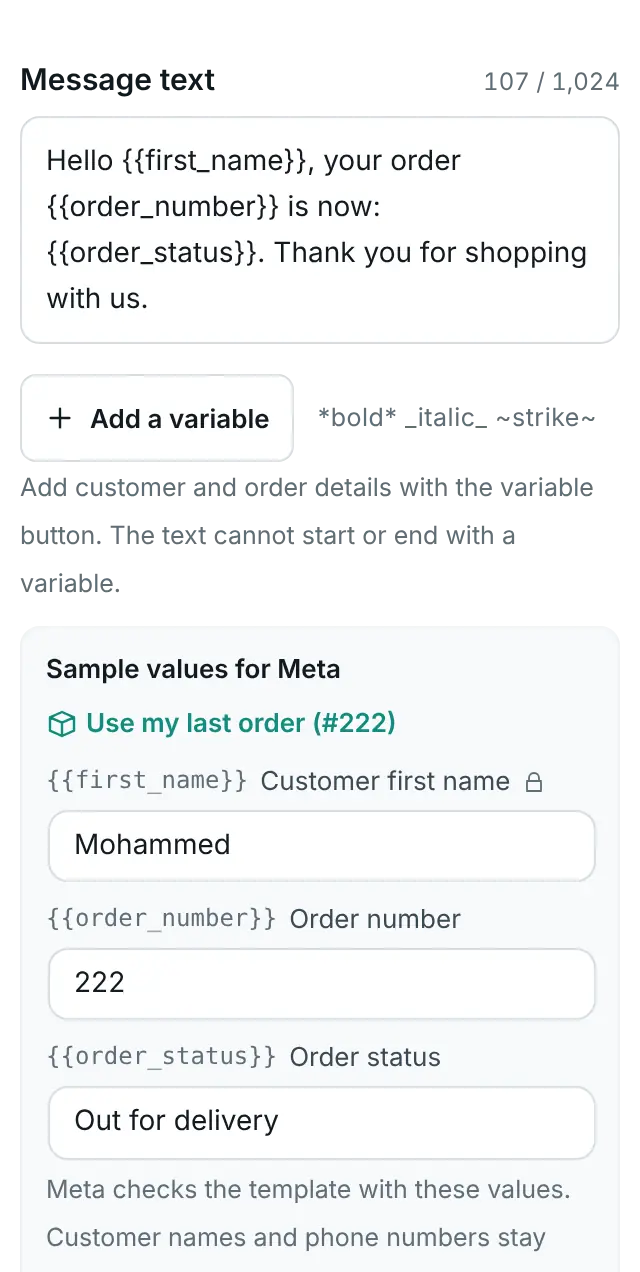
WAPI Connect → Templates → New template, the message text of an order update: each blank in {{…}} was added with “Add a variable”, and under the text each blank has the sample value Meta sees in its review. The lock next to the first name means it always keeps a neutral sample: real customer data is never sent to Meta. Under the samples the screen says: “Meta checks the template with these values. Customer names and phone numbers stay neutral samples.” Demo store data. -
Add buttons
A button can open a link, give a quick reply, call a phone number or let the customer copy a coupon code. A coupon code can be up to 20 characters, and up to 15 in a limited-time offer. Two kinds of template have their own parts: a carousel of 2 to 10 cards, each with a picture or video and one or two buttons, and a limited-time offer with a countdown and a coupon code. Choose them as a starting point in step 1. Both are Marketing only.
-
Check, then send to Meta
Press “Check”. “Checks before sending” lists every problem next to its field: variables, lengths, buttons, links, carousel and offer rules, and a Utility text that sounds like an offer. The phone preview shows the message close to WhatsApp, right to left for Arabic. When nothing is left, press “Send to Meta for review”. The template shows as in review, then approved. See Meta’s review below.
You do not have to start from nothing. Ready templates in Arabic and English (order received, shipped with a tracking link, delivered, cancelled, cash-on-delivery confirmation, cart reminder and login code) and Meta’s template library are created in one click and checked first. Meta’s library offers only Utility and login-code templates, and many are in English only. Once Meta approves a template, “Use for” puts it into Order messages, cart reminders or the login code.
WhatsApp Manager still works for creating templates. It is also where you archive or restore a template, which the Templates screen does not do.
Variables: numbered or named
A variable is a blank that the plugin fills when it sends. Meta has two kinds:
- Numbered:
{{1}},{{2}},{{3}}… - Named:
{{customer_name}},{{tracking_link}}… Names use small letters, numbers and underscores.
Order messages, campaigns and the inbox: any layout
These screens read your template from Meta and work with numbered and named variables. For each variable you choose what fills it. In WAPI Connect → Order messages the choices come from the order: customer first name, full name, order number, order total, products in the order, order date, order status, payment method, shipping method, delivery area or address, tracking number, tracking link, order page link, order ID or order key (for links), store name, website link, your WhatsApp number, or fixed text. Add an “If empty, use…” value for anything that may be missing. A “Visit website” button whose link ends in a variable, and a “Copy offer code” button, can be filled too.
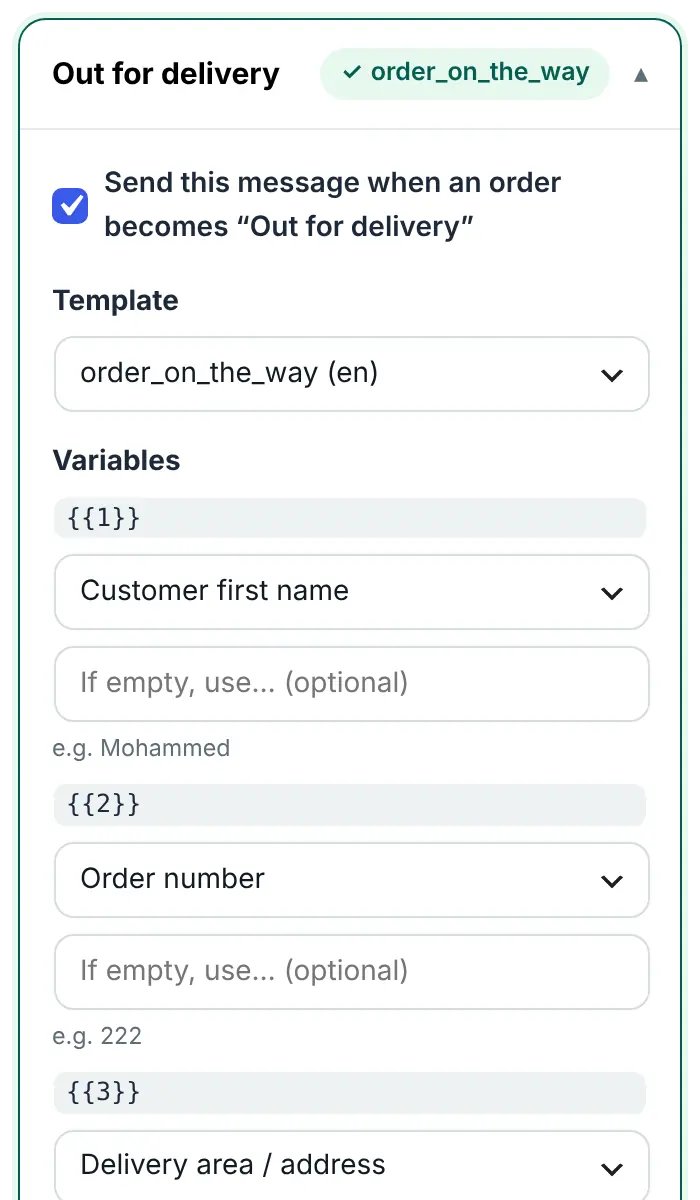
With named variables, the plugin makes a first guess from the name: a name with “name” or “customer” gets the customer’s first name, “track” the tracking number (or the tracking link when the name also says “link”), “total” the order total. Check each guess before you press “Save”.
Campaigns can send carousels, limited-time offers and location templates. They cannot send login-code, Flow, catalog or product templates. Order messages offers only the templates it can send and warns you when you pick a marketing one for an order update. More in the order messages guide and the contacts and campaigns guide.
Messages set in Settings: numbered, in a fixed order
Some messages take their template name from WAPI Connect → Settings, and the plugin sends their values as numbered variables in a fixed order. Your template must have exactly these variables, in this order, or Meta refuses the message (“Wrong number of variables”, error 132000).
| Message (where you type the name) | Category | Variables |
|---|---|---|
| Order confirmation (Templates tab) | Utility | {{1}} customer name, {{2}} order number, {{3}} order total |
| Order status update (Templates tab) | Utility | {{1}} customer name, {{2}} order number, {{3}} order status in the template’s language |
| Out for delivery (Templates tab) | Utility | {{1}} customer name, {{2}} order number, {{3}} products summary, {{4}} order total |
| Abandoned cart, first, second and third message (Abandoned Cart tab) | Marketing | {{1}} customer name, {{2}} cart recovery link |
| Verification code (OTP) (Templates tab) | Authentication | {{1}} the code, and the same code for the button |
| Admin New Order Notification (Templates tab) | Utility | {{1}} order number, {{2}} customer name, {{3}} customer phone, {{4}} total, {{5}} payment method |
| Admin Status Update Notification (Templates tab) | Utility | {{1}} order number, {{2}} customer name, {{3}} customer phone, {{4}} status, {{5}} total |
| Discount after cancellation or delivery (WooCommerce tab) | Marketing | {{1}} customer name, {{2}} order number, {{3}} discount code, {{4}} website link |
The template name and the language code you type in Settings must match the approved template exactly. A status that has its own template in Order messages uses that one instead of the order status update template.
What Meta checks in your text
- A variable cannot be the very first or the very last thing in the body. End with a short sentence, such as “Thank you for shopping with us.”
- Two variables cannot sit side by side with nothing between them.
- A very short text with many variables is refused. Keep enough normal words around them.
- Every variable needs a sample value.
- The content must follow Meta’s Commerce Policy.
Meta’s review
Meta usually reviews a template within a few minutes, and at most in 24 hours. Until then the plugin cannot send it. The Templates screen updates by itself when Meta decides, and has “Sync now” if something looks out of date. Order messages reads the same list, so an approved template appears there as soon as Meta’s answer reaches your site. If it is not there yet, press “Refresh the template list”.
Meta’s rules as listed in plugin 2.10.0, October 2026:
- You can create 100 new templates an hour. One account can hold 250 templates, or 6,000 with a verified business portfolio and an approved display name. Each language counts as one.
- An approved template can be edited once in 24 hours and 10 times in 30 days. An edit sends it back to review, and the name, language and category cannot change.
- If you delete an approved template, its name is blocked for 30 days.
- Meta may move a Utility template that reads like an offer to Marketing, which costs more. Repeated cases can limit your Utility messages.
- Limited-time offers, coupon buttons, four or more buttons, and quick replies mixed with other buttons do not show in WhatsApp on a computer or on the web.
- A template that is not sent or edited for 12 months is archived, and deleted 28 days later unless you restore it.
The plugin counts only the sends made from this site.
With the message_template_status_update webhook field on, Account health records each decision (“Template approved”, “Template rejected”) and alerts you about bad news. See the webhook fields.
Rejected, paused or disabled
Meta rejected my template
The Templates screen shows Meta’s reason in plain words, next to the part to fix. WhatsApp Manager shows it too. The usual reasons: an offer inside a utility template, a variable at the start or end, two variables side by side, a missing sample, or content that breaks Meta’s rules. Fix it and send it again, or create a new template with another name.
Meta changed my template’s category
Meta can move a template to the category it thinks fits, usually from utility to marketing. It then costs the marketing rate, and only customers who agreed to marketing should get it. Account health shows “Meta changed a template category”. For order updates, write a new utility template without any offer.
My template was paused
Meta pauses a template when many customers block or report it. Messages with it fail with “Template paused” (error 132015), and campaigns using it stop. Make the message more useful, send it only to customers who agreed, or use another template. A template that keeps being paused can be disabled. If Meta paused a template while it was pacing the first sends, improve the message first, then press “Unpause” on its card in the Templates screen.
My template was disabled
Messages with it fail with “Template disabled” (error 132016). Create a new template, then choose it in Order messages, your campaign or Settings. Order messages shows “This template is not approved any more. Choose another one.” for a status that still uses the old one.
Messages fail with “Template not found” (error 132001)
The name or the language code does not match an approved template. Copy the name exactly from the Templates screen, check the language code (ar, en_US…), and wait until the template is approved.
Messages fail with “Wrong number of variables” (error 132000)
The template has more or fewer variables than the plugin sends. For messages set in Settings, use exactly the variables in the table above. In Order messages, after you change a template in Meta, press “Refresh the template list”, open the status, choose the template again, check its variables and press “Save”.
Account health also has a “Templates” card that lists every template with a problem and its quality.
Ready texts in Arabic and English
Copy these into a new template (WAPI Connect → Templates → “New template”) or into WhatsApp Manager. They use the fixed variables from Settings, so they also work as they are in Order messages. Change the words to match your store.
Order confirmation
Utility · Settings → Templates → “Order confirmation” · suggested names order_confirmation_ar and order_confirmation_en
Arabic (ar)
مرحباً {{1}}،
تم استلام طلبك من متجرنا بنجاح.
رقم الطلب: {{2}}
الإجمالي: {{3}}
شكراً لتسوقك معنا.
English (en_US)
Hello {{1}},
We have received your order.
Order number: {{2}}
Total: {{3}}
Thank you for shopping with us.
Order status update
Utility · Settings → Templates → “Order status update” · suggested names order_status_update_ar and order_status_update_en
Arabic (ar)
مرحباً {{1}}،
تم تحديث حالة طلبك رقم {{2}}.
الحالة الحالية: {{3}}
شكراً لتسوقك معنا.
English (en_US)
Hello {{1}},
Your order {{2}} has been updated.
Current status: {{3}}
Thank you for shopping with us.
Abandoned cart reminder
Marketing · Settings → Abandoned Cart → “First message template” · suggested names abandoned_cart_ar_v2 and abandoned_cart_en. To offer a discount, type the code into the text of a reminder, and create the same coupon in WooCommerce → Coupons.
Arabic (ar)
مرحباً {{1}}،
لاحظنا أنك لم تكمل طلبك من متجرنا.
سلتك ما زالت محفوظة، ويمكنك إكمال طلبك من هنا:
{{2}}
إذا كان لديك أي سؤال، رد على هذه الرسالة.
English (en_US)
Hello {{1}},
You left some items in your cart at our store.
Your cart is saved, and you can complete your order here:
{{2}}
Any questions? Just reply to this message.
Marketing templates can also have Meta’s opt-out button (“Stop promotions”). When a customer taps it, the plugin records that they stopped marketing messages.
Login code
Authentication · Settings → Templates → “Verification code (OTP)” · suggested name authcode. Meta writes the text for you in the language you choose, so you cannot type your own. It reads roughly like this, and you can add the security line and a line with how long the code works:
Arabic (ar)
رمز التحقق الخاص بك هو {{1}}.
لا تشارك هذا الرمز مع أي شخص.
English (en_US)
{{1}} is your verification code. For your security, do not share this code.
Add the “Copy code” button. Then, in WAPI Connect → Settings → OTP Login, keep “Authentication Template Button” on “With a button (Copy code, one-tap or link)”, which puts the code on the button. Choose “None (body only)” only if your template has no button. More in the login code guide.
New-order alert to you
Utility · Settings → Templates → “Admin New Order Notification” · suggested names admin_new_order_ar and admin_new_order_en. It goes to the “Admin WhatsApp Number” in the General tab.
Arabic (ar)
طلب جديد من المتجر.
رقم الطلب: {{1}}
العميل: {{2}}
الهاتف: {{3}}
الإجمالي: {{4}}
طريقة الدفع: {{5}}
افتح لوحة المتجر لتجهيز الطلب.
English (en_US)
New order from the store.
Order number: {{1}}
Customer: {{2}}
Phone: {{3}}
Total: {{4}}
Payment method: {{5}}
Open your store dashboard to prepare it.
Check that it worked
- The Templates screen shows your templates as Approved.
- In WAPI Connect → Order messages, after “Refresh the template list”, your template is in the list and the preview shows it filled with a real order.
- “Send test” in Order messages, or Health & tools → Test tools → “Send a test template message”, brings it to your own phone.