Documentation
Contacts and campaigns: from your customer list to your first campaign
At the end, your store customers are in Contacts with their orders and their WhatsApp consent, and your first campaign has gone out to the customers who agreed, with a report that shows who got it, who read it, who replied and why any message failed.
What you need
- Business plan and up (see the plans)
- Your number connected, with every check working in Connection Doctor
- Your WhatsApp Business Account ID (WABA ID) in Settings → WhatsApp API, so your approved templates can be listed
- The
messageswebhook field on, for delivered, read and replied counts and for stop words, anduser_preferencesfor customers who turn off marketing inside WhatsApp (webhook fields) - At least one approved template. For offers, use the Marketing category (templates guide)
- Customers who agreed to receive WhatsApp messages from your store
As of 17 October 2026: marketing templates may only go to customers who agreed, Meta charges each delivered message at the marketing rate for the customer’s country, and Meta limits how many marketing messages one person receives from all businesses. New accounts can also start chats with only a limited number of customers a day (250 at the time of writing). Meta bills your own WhatsApp account; we add nothing. Rates are on Meta’s pricing page.
Contacts: who your store can message
Open WAPI Connect → Contacts. A contact is one WhatsApp number with a name, tags, its orders and its WhatsApp consent. Campaigns only ever go to contacts.
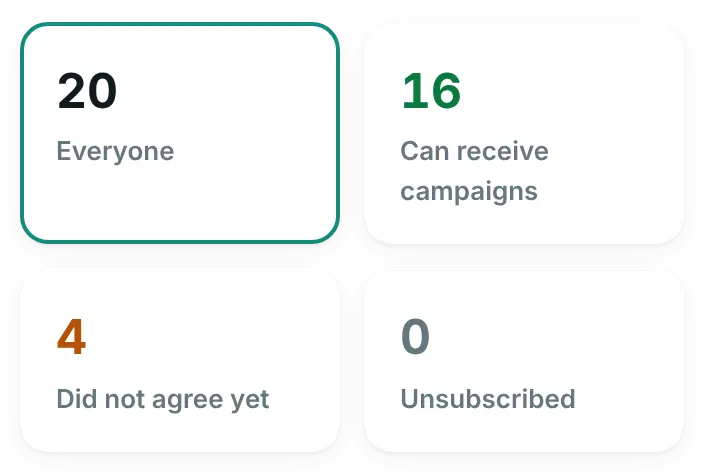
The numbers at the top filter the list: “Everyone”, “Can receive campaigns”, “Did not agree yet”, “Unsubscribed” and, when you have any, “Blocked”. Each row shows the contact, their “WhatsApp consent” (“Agreed”, “Not agreed”, “Unsubscribed” or “Blocked”), their tags, orders with total spent, last order and where the contact came from.
New orders and WhatsApp logins add and update contacts by themselves, with the number of orders, total spent and last order kept up to date. The store sync below brings in the customers you already had.
Sync from your store
-
Start the sync
In Contacts press “Sync from store” (on an empty list: “Sync from my store”). The window “Sync contacts from your store” explains what happens: every order and customer account with a phone number becomes a contact, with its number of orders, total spent and last order. Contacts you already have are updated, never deleted.
-
Choose who can receive campaigns
Under “Who can receive campaigns?”:
- “Only customers who ticked “I agree to WhatsApp messages”” (recommended). This is the box the plugin adds to WooCommerce’s classic checkout page: “I agree to receive order updates and promotional offers via WhatsApp.” Everyone else is added too, marked “Did not agree yet”.
- “All customers — I have their permission” marks everyone as agreed, except people who unsubscribed. Choose it only if your customers really agreed, for example in your store terms. The window warns you why.
-
Tag them, then start
“Tag them as” is optional and starts with “store customer”. Press “Start” and keep the window open: it shows “Reading orders…”, “Reading customer accounts…” and “Saving contacts…” with a progress bar. Big stores can take a few minutes. If the sync stops, the next time you open Contacts it asks “A store sync did not finish.” and offers “Continue it”.
-
Read the result
You see how many phone numbers were found, with “New contacts”, “Updated”, “Can receive campaigns now”, “Orders read” and “Accounts read”. People who unsubscribed stay unsubscribed. Numbers that could not be read are listed with the order or account they came from: fix them there and sync again.
Import a file
For customers from another tool, an Excel sheet or a list you collected yourself.
-
File
In Contacts press “Import”, then “Choose a file or drop it here”: Excel (.xlsx) or CSV, up to 15 MB and 100,000 rows. Semicolon and tab files (.tsv, .txt) work too, and CSV files saved by Excel in Arabic are read correctly. An Excel file is read from its first sheet. Old .xls files cannot be read: in Excel choose File → Save As → “Excel Workbook (.xlsx)” or “CSV UTF-8”. You can also open “Or paste numbers” and paste a list, one number per line. “Download a sample file” shows a ready layout.
-
Columns
The plugin guesses each column from its title, in Arabic or English, and shows the first rows. Under each column, change the choice if it is wrong, or pick “Don’t import”. Only a phone column is required. Then check:
- “The first row has column names”
- “Numbers without a country code are from”: the country for local numbers. Numbers can have spaces or Arabic digits.
- “Did these people agree to receive WhatsApp messages?”: “No — add them as “Did not agree yet”” (the default), “Yes — all of them agreed to WhatsApp messages” (you confirm it once more), or “Use the “Agreed” column of the file”, where values such as yes, 1, true, نعم or موافق count as agreed.
- “Tag all imported contacts as”: starts with the file name, so you can send a campaign to exactly this list later.
Press “Check the file”.
-
Check
Before anything is saved you see “Ready to import”, “New”, “Already in contacts (updated)”, “Will be able to receive campaigns”, “Repeated in the file (once only)” and “Cannot be imported”, with a preview of how the contacts will look. “Rows that cannot be imported” shows the row, the value and the problem, and “Download all … rows with the reason” gives you the full list to fix.

Import → Check: what will be imported, what is new, who will be able to receive campaigns, and in red the rows that cannot be imported. Nothing is saved until you press Import. Demo store data. -
Import
Press “Import … contacts”. When it finishes you see “Added”, “Updated” and “Skipped”, a “Send a campaign to them” button that opens a new campaign for the tag of this import, and “View contacts”.
It never removes consent, never brings back someone who unsubscribed or was blocked, and never wipes what you typed: an empty cell in the file does not clear a stored value. Tags from the file are added to the ones a contact already has. The uploaded file is kept in a private folder on your server and removed after a day.
Tags
Tags are your own groups, such as “VIP”, “Ramadan 2026” or the name of an imported list. Add them:
- to one contact: click the contact and type in “Tags”, then “Save”
- to many at once: tick contacts in the list (or “Select all … matching” for the whole filtered list), then “Add tag” or “Remove tag”
- during a store sync (“Tag them as”) or an import (“Tag all imported contacts as”)
The tag menu above the list filters by one tag and shows how many contacts have it. “Export” saves the list as it is filtered.
Segments: who gets a campaign
You choose the audience in step 2 of the campaign wizard, under “Who should receive it?”. Every segment holds only contacts who agreed and did not unsubscribe:
| Segment | Who is in it |
|---|---|
| Everyone who can receive campaigns | All contacts who agreed and did not unsubscribe |
| Contacts with a tag | Contacts with any of the tags you choose |
| Recent buyers | Bought in the last … days (30 to start with) |
| Customers who stopped buying | Bought before, but no order in the last … days (60 to start with) |
| Best customers | At least … orders (3 to start with), or spent at least the amount you set |
| Never bought | Signed up or agreed, but no order yet |
Under “More options” you can keep “Only these countries”, “Leave out contacts with these tags”, and set “Send to at most” to try an offer on a small group first. “Skip people who got a campaign in the last 24 hours” is on to start with; you can change the hours.
Consent
A contact can receive campaigns only when their consent says “Agreed” and they are not unsubscribed or blocked. A contact becomes “Agreed” when they ticked the box on the classic checkout page, when you import them as agreed, when a store sync with “All customers — I have their permission” marks them, when you tick “Agreed to receive WhatsApp messages” on the contact (or use “Mark as agreed” on selected contacts), or when the customer says yes in an automation with the “Sign up for offers” action. The plugin asks you to confirm each time you mark people yourself: only do it when they really agreed.
A contact stops receiving campaigns when they write a stop word such as “stop” or «إيقاف», tap “Stop promotions” in a marketing message, turn off marketing messages in WhatsApp, or when you unsubscribe them. Every change is kept in the contact’s consent history. The privacy and consent guide lists every stop word and explains the history.
Your first campaign, step by step
-
Turn campaigns on
Open WAPI Connect → Campaigns. If you see “Campaigns are turned off.”, press “Turn on campaigns” (the same switch is in Settings → Broadcast). You can prepare campaigns while they are off; none is sent.
-
Have an approved template
Create a Marketing template in WAPI Connect → Templates or in WhatsApp Manager, and wait for Meta’s review, usually minutes and at most 24 hours. A picture, video or document at the top, a coupon-code button and a link button are all supported, and now also carousels, limited-time offers and a location header. See the templates guide.
-
Wizard step 1 of 4: Message
Press “New campaign”. Give it a “Campaign name” (only you see it) and pick your template under “Message template”. Just approved and not listed? Press “Refresh list”. Templates the wizard cannot send are greyed out with the reason, for example login-code templates or templates with a Flow button.
- Header image or video: “Choose from Media Library”, or paste a public https link. The same file goes to everyone: JPG or PNG up to 5 MB, MP4 up to 16 MB, PDF up to 100 MB.
- “Fill in the variables”: for each
{{…}}choose where the value comes from: first name, full name, phone number, store name, website link, support WhatsApp number, last order number, total or date, number of orders, total spent, a custom field, or “Text I write”. Personal values have “If empty, use…”, for example “dear customer”. - Buttons: write the coupon code (up to 20 characters, 15 in a limited-time offer), or the end of the link button: your own text, the last order number or the phone number.
- Carousel cards: the campaign sends as many cards as the template has (2 to 10). For each card, choose a product from your store or a picture from the Media Library; the buttons come from the template.
- Limited-time offer end time: comes from a WooCommerce coupon or from a date you choose, at least 15 minutes after sending starts. Messages due after the end are skipped.
- Location: for a template with a location header, type the place name, the address, and the latitude and longitude (in Google Maps, press and hold the place to see them).
The preview on the side fills the message in with a real contact’s details.

The wizard's WhatsApp preview: the message as one contact will get it, with the picture, the text and the buttons. The values filled in for that contact are marked in yellow, here the first name and the discount. Demo store data. -
Wizard step 2 of 4: Audience
Choose a segment (see segments). The box below shows how many “people will receive this campaign”, and how many were left out because they did not agree, unsubscribed or got a campaign recently. If your audience is bigger than what Meta still allows you today, you see “More people than WhatsApp allows today”.
-
Wizard step 3 of 4: Send
Choose “Send now” or “Schedule for later” (in your site’s time zone). Pick a “Sending speed”: “Careful” (20 a minute) for a new number or your first campaigns, “Normal” (60) for numbers that already send regularly, “Fast” (200) only for numbers with a high daily limit. Then use “Send a test to yourself first”: type your number and press “Send test”. A test is charged like one message.
-
Wizard step 4 of 4: Review and start
“Ready to send” lists the template, audience, recipients, when, how long it takes and an “Estimated cost”. The estimate uses approximate Kuwait rates; Meta charges each message at the rate of the customer’s country. Known problems show first, such as an unpaid Meta balance or a campaign that paused itself, with a “Fix in Meta” button. A serious one has to be fixed, or confirmed with “I fixed it in Meta — send anyway”.
Press “Start sending” (or “Schedule campaign”) and confirm. Messages cannot be taken back once sent. “Save draft” keeps your work at any step.
The report
Open a campaign from the list to see its report. While it sends, the numbers update by themselves every few seconds.
- Recipients, Sent, Delivered, Read, Replied, Failed, each with a percentage. Click one to list those people.
- Replied counts a customer who wrote to you within 3 days of getting the campaign.
- Failures WhatsApp reports later, after a message was first accepted, are counted too.
- The list has tabs (“All”, “Waiting”, “Sent”, “Delivered”, “Read”, “Replied”, “Failed”, “Skipped”), a number search, and “Download report” for the whole campaign.
- Buttons depend on the state: “Pause”, “Stop”, “Resume”, “Edit” and “Cancel schedule” for a scheduled one, “Duplicate”, and “Delete” once it is no longer sending.

Failures and retries
“Why some messages failed” groups the failed messages by reason, the most frequent first. Each reason shows how many, what it means, Meta’s error code and buttons: “Show them”, “Fix in Meta” where Meta has a page for it, “Retry these …” when sending again can work, “Send to them again later” when WhatsApp held the messages back (code 131049), which prepares a copy of the campaign for those people in 3 days (you can change the date before it starts), and a download of that list.

| Reason in the report | Code | What to do |
|---|---|---|
| Held back by WhatsApp | 131049 | WhatsApp limits how many marketing messages one person receives from all businesses. Do not resend now: “Send to them again later” tags these people and prepares a copy of the campaign for 3 days later, for you to check and launch. |
| Not reachable on WhatsApp | 131026 | The number is not on WhatsApp, or the customer uses an old WhatsApp version. Sending again will not help. |
| Customer stopped marketing messages | 131050 | The customer turned off marketing messages from your business. They were moved to Unsubscribed. |
| A variable is missing | 131008 | A value was empty for this customer. Set an “If empty, use…” value, then retry. |
| Payment problem in your Meta account | 131042 | Pay the balance or fix the card in Meta (“Fix in Meta”), then resume or retry. |
| Spam limit reached | 131048 | Too many people blocked or reported your messages. Send to fewer, more interested customers, with a more useful message. |
| Template paused | 132015 | Meta paused the template for low quality. Edit it in Meta or use another one. |
“Retry” never sends again to people who are not on WhatsApp, who stopped marketing, who were held back by WhatsApp or hit the spam limit, or whose message may already have arrived (“Sending was interrupted”, “No answer from WhatsApp”). So nobody gets the same message twice.
Right before each message goes out, the contact is checked again. People who unsubscribed, were deleted or got another campaign in the meantime are “Skipped”, and the report says why. More error codes are explained in troubleshooting.
When a campaign pauses by itself
Some errors mean every next message would fail too: a payment problem, a locked or blocked account, an expired token or missing permission, a number that is not registered, the spam limit, or a paused, disabled or missing template. Then the campaign pauses at once instead of failing for everyone.
- The report shows “Paused by itself: …” with the reason, a “Fix in Meta” button where it helps, and “Nobody was skipped: the remaining people are sent when you press Resume.”
- An e-mail goes to your site’s admin address, and a notification to the phones that use the inbox app.
- Fix the problem, open the campaign and press “Resume”.
To stop every running campaign yourself, tick “Pause all campaigns” in Settings → Broadcast. They continue from where they stopped when you untick it.
Limits to know
- Meta’s daily messaging limit. Meta counts the different customers you message with a template in any 24 hours. Replies to customers who wrote to you are not limited. The limit is shared by all numbers of your Meta business portfolio. New accounts start low (250 customers a day at the time of writing, 31 October 2026). From 250 it can rise to 2,000 after business verification, or after 2,000 delivered template messages to different customers in 30 days with good quality; from 2,000 it rises by itself when you use at least half of it with good quality.
- The daily-limit warning. When the audience is bigger than what is left today, the wizard shows “More people than WhatsApp allows today”, with the limit, how many were already messaged and about how many are left. “Send to … only” cuts the campaign to that number; the rest can go tomorrow. The wizard reads your limit from Account health, and counts only messages this plugin sent.
- Marketing messages per person. Meta limits how many marketing messages one person receives. Those show as “Held back by WhatsApp”.
- Utility templates. If you use a Utility template for an offer, Meta may change it to Marketing. The wizard reminds you.
- In the plugin: files up to 15 MB and 100,000 rows per import, coupon codes up to 20 characters (15 in a limited-time offer), sending speed up to 200 a minute in the wizard.
Check that it worked
- The test message arrived on your phone and looks like the preview.
- The report shows “Delivered” and “Read” going up while it sends.
- A reply from a customer counts under “Replied”, and the chat is in your inbox.
- The contact shows the time of the “Last campaign” when you click it.
Common problems
The wizard lists no templates
Add your WhatsApp Business Account ID in Settings → WhatsApp API, then press “Refresh list”. Only approved templates are listed: a new one appears after Meta’s review.
“Nobody matches this audience.”
Most often nobody in that segment has agreed yet. Press “Review consent in Contacts” and check the “Did not agree yet” count. Mark people as agreed only if they really did.
Delivered and Read stay at 0
Meta sends these through the webhook. Turn on the messages field in your Meta app and check “Webhook receiving” in Connection Doctor.
Many messages are “Held back by WhatsApp”
Meta limits marketing messages per person across all businesses. Wait a few days and use “Send to them again later”. Sending fewer, more useful offers helps.
“All campaigns are paused.”
“Pause all campaigns” is on in Settings → Broadcast. Untick it and save; running campaigns continue where they stopped.
The campaign stopped with “Paused by itself”
Read the reason on the red banner and fix it, usually with “Fix in Meta”. Then press “Resume”. Nobody was skipped.
The import says a file cannot be read
Save it in Excel as .xlsx or “CSV UTF-8” and upload again. Files over 15 MB or 100,000 rows need to be split.