Documentation
Connect the webhook
The webhook is how Meta tells your store that something happened: a customer wrote, a message was delivered or read, a template was approved, your limit changed. At the end of this guide it all reaches your store, and Connection Doctor shows your last customer message.
What needs it
Sending works without the webhook. Everything that comes back from WhatsApp needs it: the inbox and its notifications, delivered and read ticks in campaign reports, automations (they start from a customer’s message), stop words, button taps and Meta’s alerts on Account health.
Your callback URL
Your store’s webhook address usually looks like this, with your own store address at the start:
https://your-store.com/wp-json/almorshed-whatsapp/v1/webhook“almorshed-whatsapp” is the plugin’s original technical name; it is the same plugin. Copy the exact address from the plugin, in any of these places:
- WAPI Connect → Overview, in the “Setup” card under “Webhook URL”, with a “Copy” button
- WAPI Connect → Settings → WhatsApp API, under the “Webhook Verify Token” field
- Connection Doctor, in the setup steps it shows until the first customer message arrives
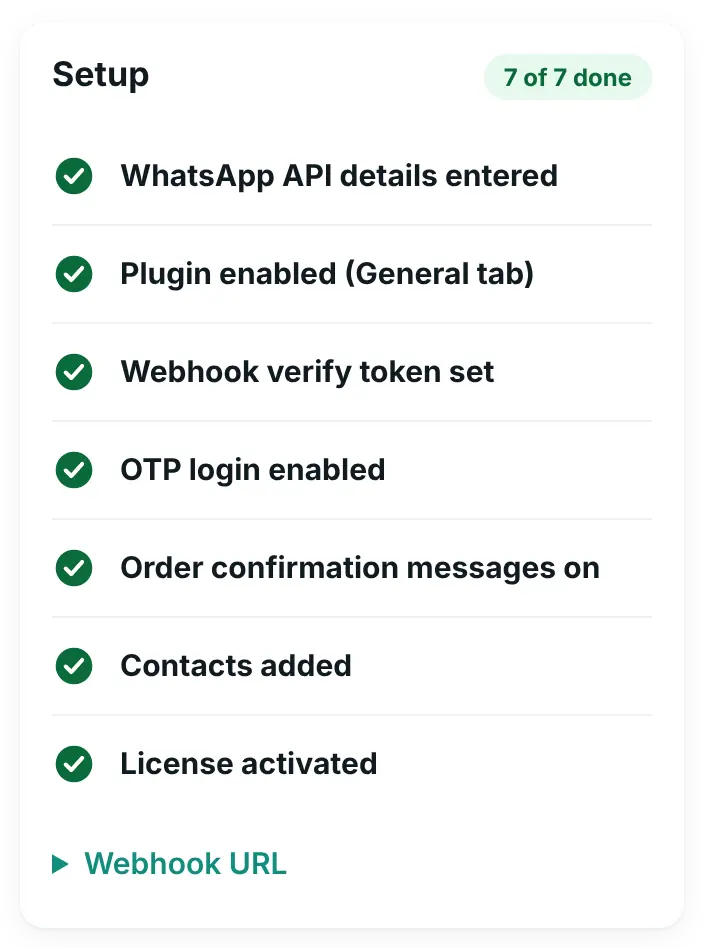
Meta only calls addresses on HTTPS, and no security plugin, firewall or Cloudflare rule may block /wp-json/. Set WordPress → Settings → Permalinks to anything except “Plain”: the address then has the form above, and the inbox needs it too.
Names below are from Meta’s English screens on 17 October 2026. If one differs on your screen, look for the closest button: the steps stay the same.
Steps
-
Choose a verify token
Open WAPI Connect → Settings → WhatsApp API. In “Webhook Verify Token”, type any secret word you make up, for example a mix of letters and numbers. Press “Save Settings” before you go to Meta: Meta checks the word straight away.
-
Add the App Secret (recommended)
In your Meta app open “App settings” → “Basic”, press “Show” next to “App secret” and copy it. Paste it into the plugin’s “App Secret” field and press “Save Settings”. With it:
- the plugin accepts only webhook calls that Meta signed, so nobody can push fake messages into your inbox
- the Calls screen can check your app’s webhook fields and add
callsfor you - the AI step in automations (Business plan) can be used: it needs the App Secret first
- a customer’s Confirm or Cancel on a cash-on-delivery message can change the order status; without it the tap only adds a note to the order
- Meta’s alerts on Account health show in full; without it they keep only what the plugin recognises and are marked “(not verified)”
Copy it exactly. A wrong App Secret stops messages and statuses from arriving, and Connection Doctor shows “Recent WhatsApp calls were rejected”. To remove it, type
-in the field and save. -
Set the callback in your Meta app
On developers.facebook.com open your app → WhatsApp → Configuration (in newer dashboards: “Use cases” → “Customize” → “Configuration”). Under “Webhook”:
- paste your callback URL into “Callback URL”
- type the same word as in the plugin into “Verify token”
- press “Verify and save”
Meta now calls your store once to check the word. If it fails, see common problems.
-
Turn on the webhook fields
Under “Webhook fields” (press “Manage” if you see it), switch “Subscribe” on for
messages. It is the one field you must have. Turn on the others in the table below too: each one brings something the plugin uses. -
Subscribe your WhatsApp account to the app
Meta only sends a WhatsApp account’s events to apps it is subscribed to. Often this happens when you add your number, but not always. Open WAPI Connect → Health & tools → Connection Doctor and look at the card about the subscription:
- “Account subscribed to the app” (green): done.
- “Meta is not sending customer messages to any app”: press “Subscribe now”.
- “Customer messages are sent to another address”: your account sends its messages somewhere else, for example to a tool you used before. Press “Send them to this store”. It needs your verify token to be saved.
-
Switch your app to Live
While your app is in Development mode, Meta can hold back messages from real customers, even when delivery statuses arrive. Check that “App settings” → “Basic” has your store’s “Privacy Policy URL”, then open “Publish” in the app dashboard (in older dashboards: switch “App Mode” at the top from Development to Live). Fill in anything else Meta lists there, such as a category, an app icon or how people ask you to delete their data.
Meta’s terms ask your app for a public privacy policy. WordPress → Settings → Privacy → “Policy Guide” shows suggested text from the plugin, and the privacy and consent guide explains it.
-
Send a test message
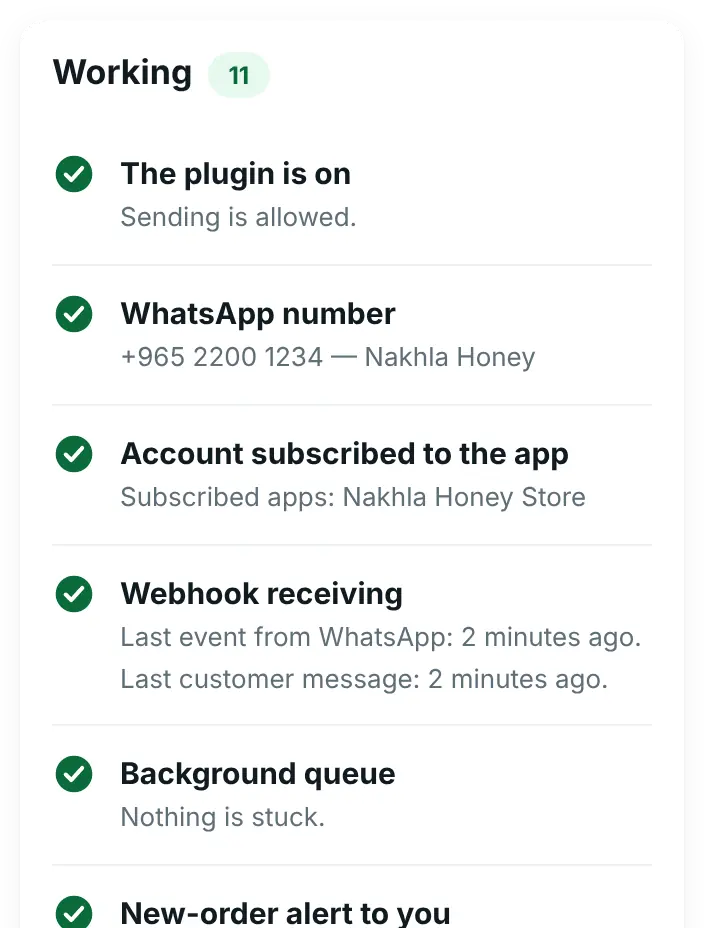
From another phone, send a WhatsApp message to your business number. In Connection Doctor press “Check again”: “Webhook receiving” now shows “Last customer message: … ago”. On Pro and up, the message is also in your inbox.
Every webhook field the plugin uses
| Field | What Meta sends | Where you see it |
|---|---|---|
messages (required) | Customer messages, button taps, and sent, delivered, read and failed statuses | Inbox, order and campaign reports, automations, stop words, Connection Doctor |
account_update | Your WhatsApp account approved, restricted or disabled, or a policy violation | Account health → “Alerts from Meta” |
phone_number_quality_update | Your number flagged for low quality or back to normal, your messaging limit up or down | Account health |
phone_number_name_update | The result of your display name review | Account health |
message_template_status_update | A template approved, rejected, paused, disabled or reinstated | Templates screen, Account health, campaigns (a paused template holds them) |
message_template_quality_update | A template’s quality changed | Templates screen, Account health |
template_category_update | Meta moved a template to another category | Templates screen, Account health |
message_template_components_update | A template’s text, header or buttons changed, for example in WhatsApp Manager | Templates screen |
business_capability_update | Your account’s limits changed | Account health |
account_alerts | Alerts Meta raises about your account | Account health |
account_review_update | The result of your account review | Account health |
user_preferences | A customer turned marketing messages from you off or back on inside WhatsApp | Contacts and campaigns (Business plan): campaigns skip customers who stopped them |
calls | WhatsApp calls from customers: ringing, ended, missed | Calls log, a call bubble in the chat, missed-call notifications (Pro plan and up) |
account_settings_update (optional) | Call settings you changed in WhatsApp Manager | The Calls screen shows them at once |
The bad news among these (a lower limit or quality, a restricted account, a paused template) also reaches you by e-mail and, on Pro and up, as a notification in the inbox app. Account health lists the account fields it needs under “How to receive alerts from Meta”, and Connection Doctor checks the four template fields (“Template updates arrive”), with a “Turn them on” button when your app already sends its webhooks to this store. For calls, WAPI Connect → Calls shows whether calls is on. When the App Secret is saved and your app already sends its webhooks to this store, it offers “Subscribe the app to “calls” for me”. More in the account health and calls guide.
Check that it worked
- Connection Doctor shows “Account subscribed to the app” and “Webhook receiving” with your last customer message.
- No “Recent WhatsApp calls were rejected” card.
- Your app shows Live in Meta’s app dashboard.
Common problems
Meta says it could not validate the callback URL or verify token
The word in Meta must be exactly the one in “Webhook Verify Token”, and saved in the plugin first. Your site must be on HTTPS, and nothing may block /wp-json/. A failed check shows in Health & tools → Message log as “Webhook verification failed: the verify token does not match, or the mode is wrong.”
Delivery statuses arrive, but customer messages never do
Turn on the messages field, and switch your app to Live. Then send a test message from another phone.
Nothing arrives at all
Open Connection Doctor. Usually your WhatsApp account is not subscribed to the app (press “Subscribe now”) or its messages go to another address (press “Send them to this store”). If you see “Recent WhatsApp calls were rejected”, the App Secret does not match your app.
Connection Doctor says messages arrive for a different Phone Number ID
Your app sends this store the messages of another number. Check the Phone Number ID in Settings → WhatsApp API: it must be the ID of the number your store uses.
Another tool already uses this Meta app
An app has one callback URL. “Send them to this store” in Connection Doctor sends only your WhatsApp account’s messages to your store and leaves the app’s own callback as it is. If the other tool needs the same WhatsApp account through the same app, only one of the two can receive its messages.
Account health says no alerts were received
That is good news, or the fields are not on. Check the list above in WhatsApp → Configuration → Webhook fields.