Documentation
Order messages: one WhatsApp template for each order status
At the end, every order status you choose sends its own WhatsApp message to the customer, filled from the order (name, number, total, tracking number…), and you get a WhatsApp alert for every new order.
What you need
- Any plan, from Starter up (see the plans)
- Your number connected to Meta’s WhatsApp Cloud API, with every check working in Connection Doctor
- One approved Utility template in Meta for each status you want to message. The message templates guide shows how to create them.
- The customer’s phone number on the order (the WooCommerce billing phone)
- At least one order in the store, so you can preview and test with real data
Use one specific template per status, for example “Your order is on its way”, and keep offers and discount codes out of them. Meta can move a utility template that contains an offer to the marketing category. As of 17 October 2026, Meta charges each delivered utility message to your own WhatsApp account, at its rate for the customer’s country.
Steps
-
Create your templates
The quickest way is WAPI Connect → Templates: the ready order-update pack has an order received, a shipped message with the tracking link, a delivered message and a cancelled message, in Arabic and English. You can also create a template in Utility in Meta’s WhatsApp Manager for each status, in the language your customers read, with blanks such as
{{1}}where the customer’s name, the order number or the tracking number go. Meta reviews each template, usually within a few minutes and at most within 24 hours. Only approved templates show up in the order messages list.Once Meta approves a template, press “Use for” on it in the Templates screen and choose “Order message: <status>” to put it on that status. If you choose “Order message: Processing” while the order confirmation in Settings → WooCommerce is on (at Processing, at payment or when the order is placed), the screen warns you that the customer could get two messages.
-
Add “Out for delivery” and “Delivered” (optional)
WooCommerce has no status for an order on its way. To add two, open WAPI Connect → Settings → WooCommerce, tick “Enable custom statuses” (“Add the “Out for delivery” and “Delivered” statuses to WooCommerce”) and press “Save Settings”. Your orders can then move to “Out for delivery” and “Order delivered”, and both show up on the Order messages screen.
-
Turn order updates on
Open WAPI Connect → Order messages and tick “Send order updates on WhatsApp” at the top. This is the same switch as “Order Status Updates” in Settings → WooCommerce: while it is off, no status sends anything.

WAPI Connect → Order messages, the top of the screen: the switch for all order updates, ticked, and the screen's own reminders under “Good to know”. UTILITY is Meta's name for the Utility category. Demo store data. -
Choose a template for a status
Every WooCommerce status has a card, including statuses added by other plugins. A template whose header is a location sends the place you enter for that status. Open one, for example “Processing”, and tick “Send this message when an order becomes “Processing””. In “Template”, pick your template from the list: utility templates come first under “Utility (order updates)”. Templates under “Marketing (not for order updates)” get a warning: order updates belong in a Utility template, and marketing messages usually cost more.
A template you just approved is not in the list yet? Press “Refresh the template list” at the bottom of the screen.
-
Tell each blank what to show
Under “Variables” there is one row for each blank of the template. Choose what fills it:
- Customer first name, Customer full name, Order number, Order total, Products in the order, Order date, Order status
- Payment method, Shipping method, Delivery area / address
- Tracking number, Tracking link, Order page link (My account)
- Store name, Website link, Your WhatsApp number, or Fixed text (you type it in “Write the text”)
Under each row you see the value from your latest order (“e.g. …”), or “empty in the latest order”. Fill in “If empty, use… (optional)” for anything that can be missing, such as a tracking number on a new order. WhatsApp refuses an empty blank, so without it the plugin sends a dash.
If the template has a picture, video or document at the top, paste its link in “Header file”. A link button with a blank at the end of its address gets a “Button link end” row (the order ID by default, or the tracking number for a courier’s tracking page). A copy-code button gets a “Coupon code” row.
-
Check the preview and send a test
On the right, “Preview with order #…” shows the message filled in with your latest order. In “Send a test to”, your number from “Admin WhatsApp Number” is already there; change it if you like and press “Send test”. You see “Sent with order #…. Check WhatsApp on that phone.” and the message arrives on that phone.
-
Save, then repeat for the other statuses
Press “Save”. The card now shows ✓ and the template name. Do the same for each status you want to message, for example Processing, Out for delivery and Completed. From now on, when an order moves to one of these statuses, the customer gets that message once.
Tracking numbers, filled in for you
When a blank is set to “Tracking number” or “Tracking link”, the plugin looks on the order in this order:
- WooCommerce Shipment Tracking and Advanced Shipment Tracking: the latest tracking number, and its link when one is saved with it
- AfterShip’s tracking-number field (
_aftership_tracking_number) - Simple order fields:
_tracking_numberortracking_number, and_tracking_link,tracking_link,_tracking_urlortracking_url
If your courier plugin saves the number somewhere else, a developer can copy it into one of these fields. Move the order to “Out for delivery” only after the tracking number is saved, so the message carries it.
Statuses without their own template
A status you do not set up here keeps the plugin’s general settings, and its card says what happens today:
- “General template: …”: the status is ticked in Settings → WooCommerce → “Send Status Message For”, so it sends the general “Order status update” template from Settings → Templates (customer name, order number, order status).
- “Out-for-delivery template: …”: “Out for delivery” uses its own template from Settings → Templates.
- “Nothing is sent”: no message for this status.
- “Off”: you chose a template here but unticked “Send this message when an order becomes …”. Nothing is sent for this status.
“Remove (use the general settings)” in an open card deletes your choice for that status and goes back to the general settings.
The order confirmation in Settings → WooCommerce (“Order Confirmation”, sent when “The order moves to Processing (recommended)”) also goes out when an order becomes Processing. If you give Processing its own template here, untick “Order Confirmation”, or leave Processing without a template.
Cash-on-delivery orders: Confirm or Cancel
For orders paid on delivery, you can send a template with Confirm and Cancel reply buttons. The customer’s tap adds a note to the order and can move it to the status you choose.
-
Create or pick the template
In WAPI Connect → Templates, create the cash-on-delivery confirmation from the ready pack (“Cash-on-delivery confirmation (Confirm / Cancel)”), or pick your own template that has these two reply buttons. Wait until Meta approves it.
-
Choose it on a status
In WAPI Connect → Order messages, open “Pending payment”, “On hold” or “Processing” and choose the template.
-
Choose the statuses for Confirm and Cancel
In the “Cash on delivery confirmation” box, choose the status an order moves to when the customer confirms (“When the customer confirms”) and when the customer cancels (“When the customer cancels”). Leave one empty to keep the order’s status and only add the note.
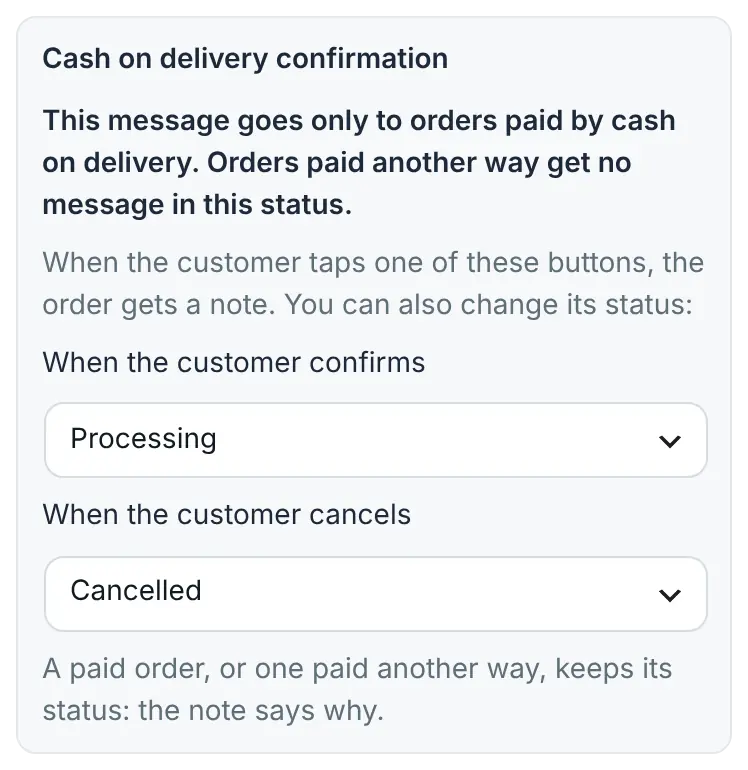
The “Cash on delivery confirmation” box under the status: here an order becomes Processing when the customer confirms and Cancelled when the customer cancels. Demo store data. -
Save the App Secret
In Settings → WhatsApp API, save your Meta app’s App Secret. Without it, a tap only adds a note marked “not verified” and never changes the status, because the plugin cannot tell a real WhatsApp message from a faked one. Order messages and Connection Doctor tell you when it is missing.
-
Test it
After Meta approves the template, place a cash-on-delivery order from your own number and tap Confirm, then do it again and tap Cancel.
- The message goes only to unpaid cash-on-delivery orders that are pending payment, on hold or processing. Orders paid another way get the general status message instead.
- A cash-on-delivery template is not saved for any other status.
- Confirm and Cancel work by the position of the buttons. An edit that moves or rewords them is refused. If you change the buttons in WhatsApp Manager, choose the template again on the status.
The new-order alert to you
A WhatsApp message to your own phone for every new order. It is a template message too.
-
Create the alert template
In the Templates screen or in WhatsApp Manager, create a Utility template with five blanks, in this order:
{{1}}order number,{{2}}customer name,{{3}}customer phone,{{4}}total,{{5}}payment method. -
Enter it and your number
In Settings → Templates, write its exact name and language code next to “Admin New Order Notification”. In Settings → General, fill in “Admin WhatsApp Number” with the country code. Use your own WhatsApp number, not the store’s business number.
-
Turn it on
In Settings → WooCommerce, tick “Admin New Order Notification” (“Notify the admin WhatsApp number on every new order”) and press “Save Settings”. It works with WooCommerce’s block checkout and with orders created in other ways. Each order sends one alert.
Want a message every time an order changes status? Tick “Admin Status Update Notification” in the same tab. It uses its own template, set in Settings → Templates, with five blanks: order number, customer name, customer phone, status, total.
Check that it worked
- Place a test order with your own phone number as the billing phone, then move it to a status you set up. The message reaches your phone once; moving the order back and forth does not send it again.
- Open WAPI Connect → Health & tools → Message log and type the order’s ID in “Order ID…” to see every message of that order.
- In Health & tools → Connection Doctor, the “New-order alert to you” check shows when the last alert went out, or why it failed.
Common problems
My template is not in the list
Only approved Utility and Marketing templates are listed. Authentication (login-code) templates, carousels and limited-time offers are not offered, because order messages cannot send them. Check in WhatsApp Manager that it is approved, then press “Refresh the template list”. If the screen says “Could not load your templates from Meta”, check your WhatsApp Business Account ID and token in Settings → WhatsApp API.
The card says “This template is not approved any more. Choose another one.”
Meta paused, disabled or deleted the template. Choose another approved template, or fix it in WhatsApp Manager and press “Refresh the template list”.
An order changed status and the customer got nothing
Check, in this order: “Send order updates on WhatsApp” is on; the status card shows ✓ and not “Off” or “Nothing is sent”; the order has a billing phone; “Enable Plugin” is on and “Emergency Disable” is off in Settings → General. To see the reason for a skipped message, tick “Debug Mode” in Settings → General: the Message log then shows each skipped message with the reason, for example that this status was already sent for this order.
The customer got a dash instead of the tracking number
The order had no tracking number when it changed status. Fill in “If empty, use… (optional)” with a short text, and save the tracking number before you move the order to “Out for delivery”.
“Send test” says there is no order to preview with
The preview and the test use your latest order. Place one test order first, then try again.
The test did not arrive
The error message on the screen says why in plain words, for example a template name or language that does not match, or a blank that does not fit. Check that the number in “Send a test to” has the country code.
A Confirm or Cancel tap only added a note marked not verified
No App Secret is saved. Save it in Settings → WhatsApp API: from then on a tap also moves the order to the status you chose. Taps that arrived before stay as notes.
The cash-on-delivery message was not sent
Check that the order is unpaid and was paid by cash on delivery (an order paid another way gets the general message), that its status is pending payment, on hold or processing, and that the buttons of the template have not been changed in WhatsApp Manager. If they were, choose the template again.
Can I send Arabic to some customers and English to others?
Each status uses one template in one language. Choose the language most of your customers read.