Documentation
Connection Doctor: every check, and what to do when one is red
Connection Doctor checks every link between your store and WhatsApp and tells you what to fix. At the end of this guide every check is in the “Working” card, or you know exactly what to change.
Open it
In WordPress open WAPI Connect → Health & tools → Connection Doctor. It runs every check each time the page opens; press “Check again” after you change something.
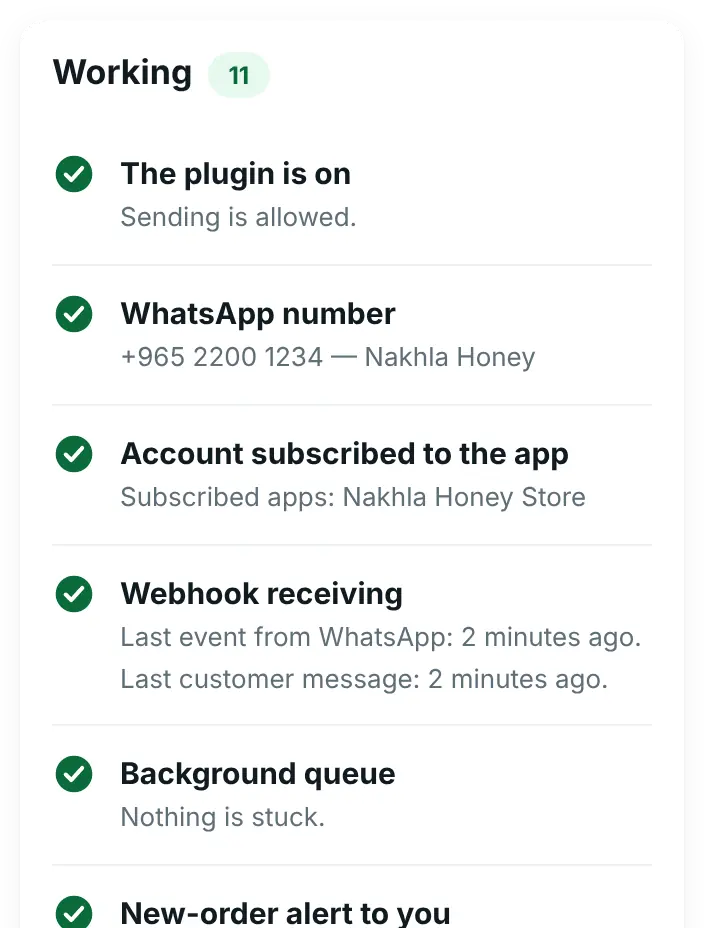
- Next to the title you see either “Everything that can be checked looks good.” or how many problems need fixing.
- Red cards come first: something stops messages from going out or coming in.
- Yellow cards come next: it works, but something needs your attention.
- Everything that works is folded into one “Working” card at the bottom.
Some cards have a button that fixes the problem from your store. Others list steps with a “Copy” button next to the value you need. The checks only read from Meta and send no messages, so they cost nothing.
The checks, one by one
In the order the plugin runs them. Values in quotes are what the plugin shows.
1. The plugin is on
Whether sending is allowed at all. Green: “The plugin is on”.
- “Sending is stopped”: Emergency Disable is on. Open Settings → General, untick “Emergency Disable” and press “Save Settings”.
- “The plugin is turned off”: open Settings → General, tick “Enable Plugin” and press “Save Settings”. The plugin starts switched off after you install it.
2. WhatsApp details
Shown only when something is missing: “WhatsApp details are incomplete”, followed by what is missing (Phone Number ID, WhatsApp Business Account ID or Access Token). Fill them in under Settings → WhatsApp API and save. The access token guide shows where each one is in Meta.
3. WhatsApp number
The plugin asks Meta about your Phone Number ID. Green shows your number and the business name Meta verified.
- “WhatsApp rejected the connection” with “The access token is expired or wrong”: the token stopped working, usually because it was the 24-hour test token. Create a permanent System User token and paste it in Settings → WhatsApp API (tick “Replace with a new token”).
- “WhatsApp rejected the connection” with another message from Meta: check that the Phone Number ID is right and that the token was made in the same business as the number. Copy both again.
- “This number is registered on … not on the Cloud API” (red): the number is not registered on Meta’s Cloud API yet. Register it with your PIN, as in the phone number guide.
- “Quality rating is LOW (red)” (yellow): customers blocked or reported your messages, and Meta may limit sending. Send fewer marketing messages, only to customers who agreed. Account health shows your quality over time.
4. Account subscribed to the app
Whether Meta sends your WhatsApp account’s messages to your app, and from there to this store. This is the most common reason the inbox stays empty. Green: “Account subscribed to the app”, with the names of the subscribed apps.
- “Meta is not sending customer messages to any app”: press “Subscribe now”. Then make sure your app’s webhook points to this store (check 5).
- “Customer messages are sent to another address”: your account is set to send its messages somewhere else, for example to a tool you used before. Press “Send them to this store”. It needs your Webhook Verify Token to be saved first.
- “Could not check the webhook subscription”: check that the WhatsApp Business Account ID is right and that your token has the
whatsapp_business_managementpermission.
5. Webhook receiving
Whether anything from WhatsApp has reached this store, and when. Green: “Last event from WhatsApp: … ago. Last customer message: … ago.”
- “Webhook verify token is empty”: type any secret word in “Webhook Verify Token” under Settings → WhatsApp API, save, then follow the steps on the card.
- “This store has never received anything from WhatsApp”: the webhook is not set up in your Meta app yet. Follow the steps on the card (below).
- “Delivery statuses arrive, but no customer message has arrived yet” (yellow): turn on the
messagesfield in your Meta app (WhatsApp → Configuration → Webhook fields). If it is on, send a message to your business number from another phone.
The steps on the card, with your own values ready to copy:
- Open developers.facebook.com → My Apps → your app → WhatsApp → Configuration.
- In “Callback URL” paste your store’s webhook address (it ends in
/wp-json/almorshed-whatsapp/v1/webhook). - In “Verify token” paste your Webhook Verify Token.
- Press “Verify and save”, then under “Webhook fields” turn on
messages. - Send a WhatsApp message to your business number from another phone and press “Check again”.
The webhook guide also lists the other fields to turn on, for account alerts and calls.
6. Recent WhatsApp calls were rejected
Shown only when it happens. Here “calls” means requests from WhatsApp to your store, not phone calls. The card tells you why, and how long ago:
- The App Secret does not match your Meta app: copy it again exactly from your app → App settings → Basic into Settings → WhatsApp API, or clear it by typing
-in the App Secret field and saving. - Messages arrive for a different Phone Number ID: the card shows the ID they were for. Your app sends messages of another number to this store; check the Phone Number ID in Settings → WhatsApp API.
- “A call arrived that is not valid WhatsApp data.”: a request that was not WhatsApp data reached your webhook address, usually not from Meta. Nothing to fix unless it keeps coming back; with the App Secret filled in, the plugin turns away every call that Meta did not sign.
The card goes away by itself once a good event from WhatsApp arrives after the error.
7. Background queue
Order messages and reminders wait in a background queue before they go out. Green: “Nothing is stuck.”
- “Messages waiting in the background queue” (yellow): tasks have waited more than 10 minutes, usually because WP-Cron does not run on your server. Press “Run them now”. For a lasting fix, ask your host to set up a real cron job for WordPress.
8. New-order alert to you
The WhatsApp message you get for every new order. Green: “Last alert to …: … ago.”
- “Turned off.” (yellow): to get it, tick “Admin New Order Notification” in Settings → WooCommerce and fill in “Admin WhatsApp Number” in Settings → General.
- “Your (admin) WhatsApp number is missing or invalid in Settings → General.” (red): fill in “Admin WhatsApp Number” there, with the country code.
- “… but no alert has been sent yet” (yellow): it is on, with the template it names. Place a test order to check.
- “The last alert failed: …” (red): the reason follows in plain words, for example that the template name or language does not match an approved template.
9. Sending errors
Messages that failed in the last 24 hours, grouped by reason, the most frequent first. Green: “No failed messages in the last 24 hours.”
Each group shows how many failed, the reason in plain words, what kind of message it was (order status update, campaign and so on), when, up to three of the numbers and Meta’s error code. Where Meta has a page to fix it, a “Fix in Meta” button opens it.
- Red when the reason blocks most sending: a payment problem on your WhatsApp account, an account locked or blocked by Meta, an expired access token, or the spam limit.
- Yellow for everything else, for example a number that is not on WhatsApp or a template variable that does not match.
The troubleshooting guide explains the most common error codes.
10. Permalinks
Shown only when it is a problem: “Permalinks are “Plain””. The inbox needs pretty permalinks: open Settings → Permalinks in WordPress, choose “Post name” and save.
11. HTTPS
Shown only when it is a problem: “The site is not on HTTPS”. Phone notifications and the WhatsApp webhook need it. Ask your host for an SSL certificate, then make sure your site address starts with https:// in WordPress → Settings → General.
12. Phone notifications
How many phones get a notification for new messages. Green: “1 device receives notifications.”
- “No device has turned on notifications yet.” (yellow): open the inbox on your phone and turn notifications on. See the inbox app guide.
13. Templates
Checks for the Templates screen, which reads, creates and updates your message templates in Meta.
- “Templates can be managed”: the access token can read and create message templates. When Meta refuses the token, the card is red with the reason (see the access token guide). “The templates could not be read from WhatsApp” (yellow): Meta did not answer; check again in a few minutes.
- “Meta App ID”: found by itself or taken from the settings. “The Meta App ID was not found” (yellow): a picture, video or file in a template header, and carousel cards, need it. Add it in Settings → WhatsApp API; it is in Meta for Developers → your app → App settings → Basic.
- “Template updates arrive”: your Meta app sends template approvals, rejections, quality and category changes to this store. “Template updates are not turned on” (yellow) names the missing webhook fields. Press “Turn them on” when the card has it, or turn them on in WhatsApp → Configuration → Webhook fields. Without them, Meta’s answers reach the plugin only at the daily sync.
- “Templates synced”: when the last sync ran and how many templates you have. Yellow when no sync has run yet (open the Templates screen once), when the last sync failed, or when none ran for over two days, usually because WP-Cron is not running.
- “Templates Meta may archive soon” (yellow, only when there are some): approved templates not sent from this site for 11 months. Meta archives a template that is not sent or edited for 12 months and deletes it 28 days later, unless you restore it in WhatsApp Manager.
14. Cash-on-delivery answers and the login code
Two yellow cards, shown only when they apply:
- “Cash-on-delivery answers cannot change orders without the App Secret”: a Confirm / Cancel message is on in Order messages, but no App Secret is saved, so a customer’s tap only adds a note to the order. Add the App Secret in Settings → WhatsApp API. See order messages.
- “The login code template states another expiry”: the login code template tells customers a different time than “OTP Expiry (minutes)” in Settings → OTP Login. Make both the same.
Check that it worked
- The title says “Everything that can be checked looks good.”
- Send a WhatsApp message to your business number from another phone, press “Check again” and look for “Last customer message” under “Webhook receiving”.
- For a message the other way, open Health & tools → Test tools. “Test connection” answers with your number and its quality, and “Send a test template message” sends any approved template to your own phone.
What it cannot check
- Whether each template passed Meta’s review. The Templates screen shows that, and Account health lists templates with problems.
- Your messaging limit, quality history and costs. Those are on the Account health tab, next to Connection Doctor.
- Most settings inside your Meta app. With the App Secret saved it can read which webhook fields your app sends; otherwise it only sees what actually arrives, which is why it asks you to send a test message.
Common problems
A problem card says what is wrong and what it means for your store, and when the store can fix it by itself, it has the button that does it. For example:

I pressed “Subscribe now” and the inbox is still empty
Subscribing tells Meta to send messages to your app. Your app then needs to send them to this store: set the Callback URL and verify token in WhatsApp → Configuration, as in check 5, and turn on the messages field.
Meta will not verify my Callback URL
The verify token in Meta must be exactly the word in Settings → WhatsApp API, and saved there first. Your site must be on HTTPS. A security plugin or firewall that blocks /wp-json/ also stops it. A failed attempt shows in Health & tools → Message log as “Webhook verification failed”.
Everything was green, and now the number check is red
Read the message on the card. If it says the access token is expired or wrong, the token no longer works, for example because the System User or its permissions changed in Meta. Create a new permanent token and paste it in Settings → WhatsApp API.
Statuses arrive, but customer messages never do
Turn on the messages webhook field in your Meta app. Also check in Meta’s App Dashboard that your app is switched to Live, not Development.
Does Connection Doctor change anything in Meta by itself?
No. It only reads. The buttons “Subscribe now”, “Send them to this store” and “Run them now” change something only when you press them.