Documentation
Inbox app: every customer chat on your phone
At the end, the inbox is an icon on your phone’s Home Screen, every new customer message rings with a notification, common answers take one tap, and each chat shows the customer’s orders next to it.
What you need
- Pro plan and up (see the plans)
- Customer messages reaching your store: “Webhook receiving” is green in Connection Doctor
- Your site on HTTPS, and permalinks set to anything except “Plain” (WordPress → Settings → Permalinks)
- A WordPress administrator account: you sign in to the inbox with it
- An iPhone with iOS 16.4 or newer (Safari), or an Android phone with Chrome. The inbox also opens in a computer’s browser.
Install it on your phone
-
Find the inbox address
In WordPress, open WAPI Connect → Inbox. The page shows your inbox address (it ends in
/wapi-inbox/) with an “Open the inbox” button, and lists the “Devices subscribed to notifications”. Send the address to your phone, for example by e-mail. -
On iPhone: add it to the Home Screen
Open the address in Safari. Tap the Share button (the square with the arrow), then “Add to Home Screen”. Open the inbox from its new icon. On iPhone, notifications only work when the inbox is opened from that icon.
-
On Android: open it in Chrome
Open the address in Chrome. Notifications work right away in Chrome. For an icon on the Home screen, use the add-to-Home-screen option in Chrome’s menu (⋮); its name depends on your Chrome version.
-
Sign in
Enter your WordPress “Username or email” and “Password”, then tap “Log in”. Each person signs in with their own administrator account.
-
Allow notifications
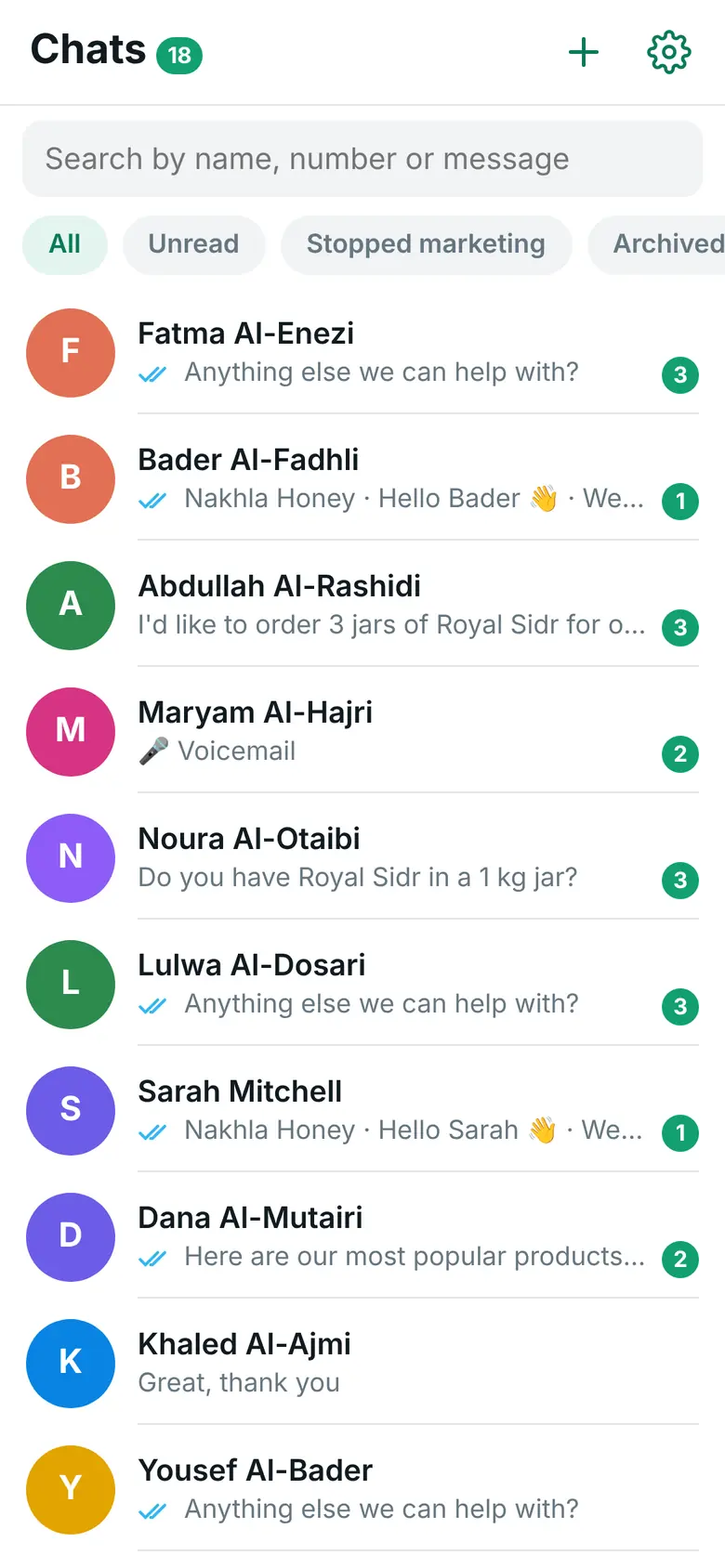
Tap “Turn on” in the banner “Turn on notifications to get an alert for every message.”, or open Settings (the gear above the chat list) → Notifications → “Turn on notifications”. When the phone asks, tap “Allow”. You see “Notifications turned on”.
Then tap “Send a test notification” on the same page, and check that it reaches the phone.
Reply to a customer
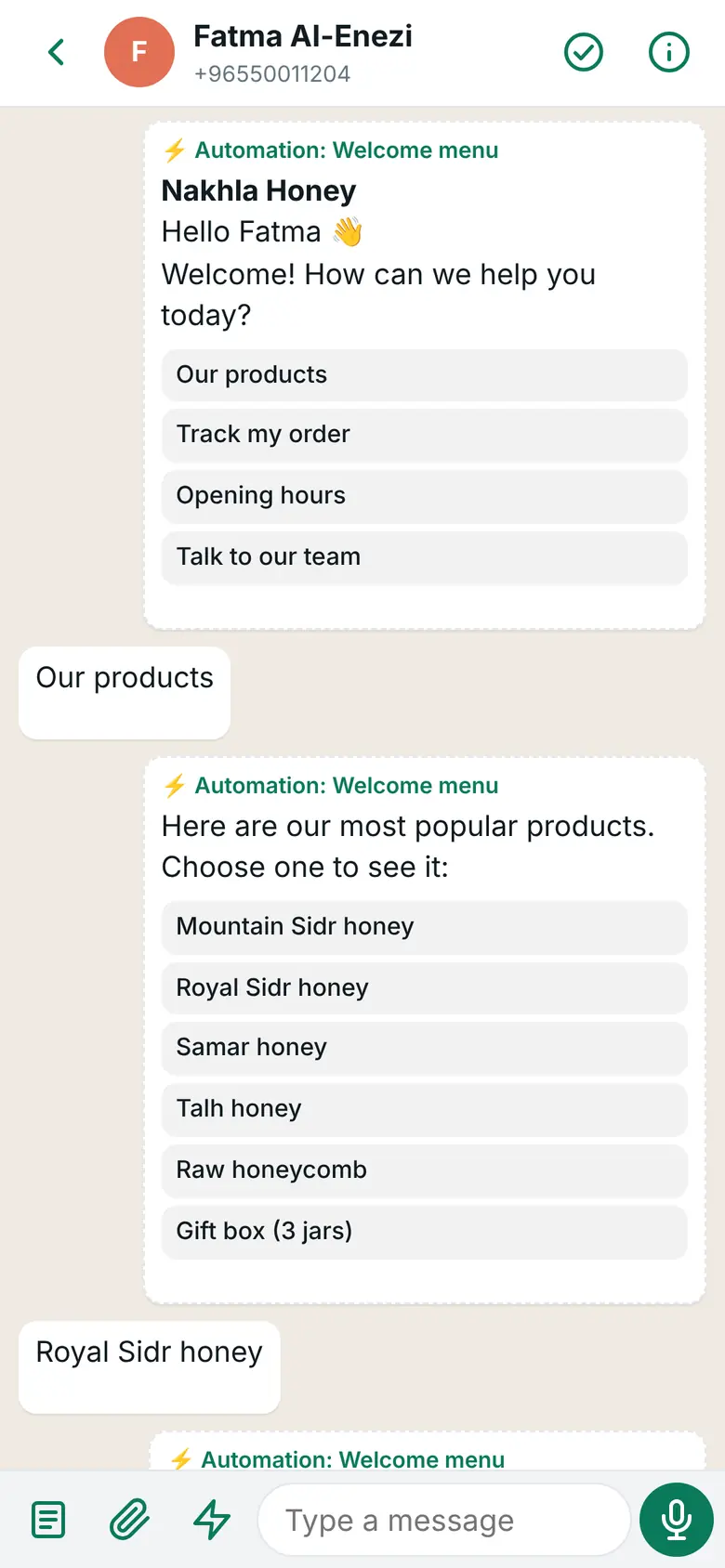
Tap a chat to open it. Type in the box at the bottom and send, attach a file with the paperclip, or record a voice message. Messages sent by an automation or an order update show in the chat too, with their buttons.
WhatsApp lets you write freely for 24 hours after the customer’s last message. After that, the box says “Templates only” and a “Send a template” button appears: choose an approved template and send it. If the customer replies, you can carry on as usual.
As of 31 October 2026: since 1 October 2026, Meta charges for replies inside the 24-hour window. The first 1,000 each month on each WhatsApp number cost nothing; after that Meta charges its service rate for the customer’s country. A chat that starts from your click-to-WhatsApp ad costs nothing for up to 7 days. Meta bills your own WhatsApp account; we add nothing.
Saved replies
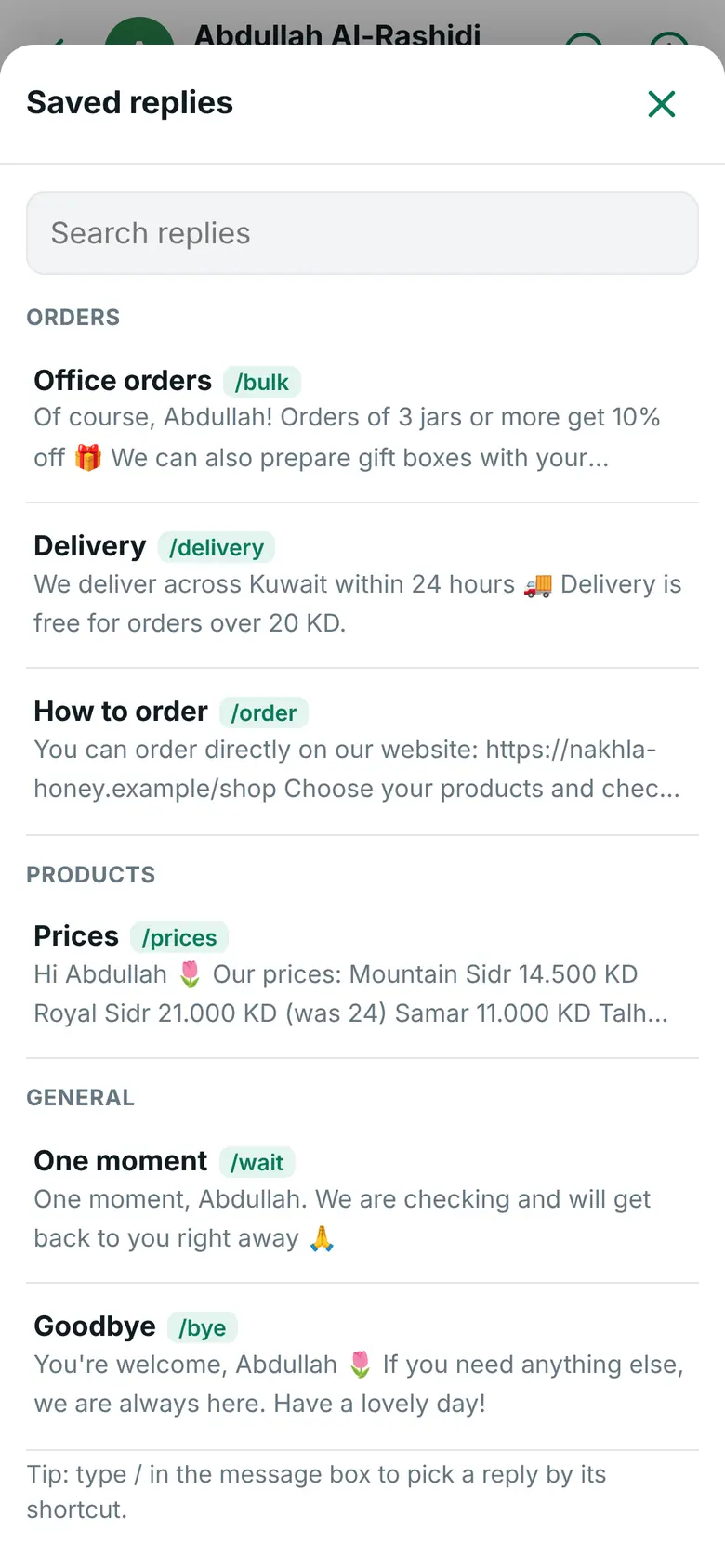
For long answers you send often: prices, delivery, returns, how to order.
- Open Settings → Saved replies and tap “Add a reply”.
- Fill in “Title (only you see it)” and “Message text”. In the text,
{name}becomes the customer’s first name and{store}the store name. - Optional: a “Group (optional)”, such as Delivery or Products, and a “Shortcut (optional)”, such as
prices. Tap “Save”.
Do not want to start from zero? “Suggest replies from my store” writes replies from your products, prices, policies and shipping methods for you to check and add, and “Add starter replies” adds a few common ones. “Import a file” reads a JSON list of replies with a title and a text, and “Export” saves yours to a file.
In a chat, tap the ⚡ button to pick a reply, or type / and the shortcut, for example /prices. You can still edit the text before you send it.
The customer panel
Tap the customer’s name at the top of the chat, or the ⓘ button, to open “Customer info”:
- Marketing messages: whether the customer agreed, and the button to stop them (below).
- “Call”, “Copy number” and “WhatsApp” buttons, a “Name” you choose and private “Notes” the customer never sees (“Save name and notes”).
- “Pin”, “Archive” and “Unread” for this chat.
- Store: “Number of orders” and “Total paid purchases” for this number, with a link to “Open the customer account”.
- Latest orders: number, status, total, products and date, each linked to the order.
- Abandoned carts: the customer’s carts with the reminder status. While you can write freely, “Send the cart link” puts the cart link into the message box for you.

Close a chat and ask for a rating
- Open Settings → Rating after the chat and tick “Ask the customer to rate the chat when you mark it as done”. It is off until you turn it on.
- Change the texts if you like: “Question”, “Button 1 (excellent)”, “Button 2 (good)”, “Button 3 (bad)”, “Thank-you message” and “Reply to a bad rating”. Tap “Save”.
- When a conversation is finished, tap the ✓ button at the top of the chat (“Mark as done”). The customer gets the question with three buttons, and you see “Marked as done. Rating request sent ⭐”.
The rating request only goes out within 24 hours of the customer’s last message, and not twice since that message; otherwise the chat is marked done without it, and the strip above the message box says why. To close one chat without asking, press and hold it in the list and choose “Mark as done without a rating request”. “Reopen” brings a chat back.
On the same settings page, “Ratings in the last 30 days” shows the share of satisfied customers and the “Recent bad ratings”, each linked to its chat. When an automation handed a chat to your team, marking it as done also lets the automations answer in it again.
Stop marketing for a customer
When a customer asks for no more offers:
- Open “Customer info”. Under “Marketing messages”, tap “Stop marketing messages”.
- Write a “Reason (optional)” and confirm with “Stop marketing messages”.
The card then shows “Marketing stopped”, how it was stopped, when, and by whom. Campaigns skip that customer, and automations no longer send them products on their own after a wait. Order updates and your replies here still go out.
Some customers stop by themselves: they write a stop word (like “stop” or «إيقاف»), tap “Stop promotions” in a marketing message, or turn off marketing messages in WhatsApp. The card shows that too. The “Stopped marketing” filter above the chat list shows all of them.
“Allow marketing again” only works after you tick “The customer asked me to receive offers again”, and it is saved with your name and the date. Do it only when the customer asked.
Check that it worked
- Lock your phone and send a WhatsApp message to your business number from another phone: a notification arrives with the customer’s name and the start of the message.
- WAPI Connect → Inbox lists your phone under “Devices subscribed to notifications”.
- Connection Doctor’s “Phone notifications” check says how many devices receive notifications.
Common problems
The inbox address does not open
Permalinks are probably set to “Plain”: WAPI Connect → Inbox then shows a red notice. In WordPress → Settings → Permalinks, choose “Post name” (or any option except Plain) and save.
“Your account is not allowed to open the inbox.”
Only WordPress administrators can open the inbox. Sign in with an administrator account.
The iPhone has no “Turn on notifications” button
The inbox was opened in Safari, not from its Home Screen icon. Add it to the Home Screen from Safari, open it from the icon, and turn notifications on there. The iPhone needs iOS 16.4 or newer.
“Notifications are blocked”
Notifications were refused once. Turn them on in the phone’s settings for the inbox app (on iPhone: Settings → Notifications → Messages, the name of the inbox icon unless you renamed it), then open the inbox again.
No notifications although they are on
Check Settings → Notifications → “Send a test notification”. If the test arrives, messages are not reaching the store: open Connection Doctor. Notifications also need the site on HTTPS.
The chat list stays empty
No customer message has reached the store yet. The banner in the app links to Connection Doctor, which finds the reason.
The message box says “Templates only”
More than 24 hours passed since the customer’s last message. Send an approved template; when the customer answers, you can write freely again.
A yellow banner says “Sending is stopped: …”
Messages still arrive and are saved, but nothing can be sent until the cause it names is fixed: “Enable Plugin” is off or the emergency stop is on (Settings → General), or the license ended and its 14-day grace period is over (renew it in Settings → License).
A shared phone keeps getting notifications
Open Settings → Account → “Log out”. Logging out also stops notifications on that phone.